


You sit down to work. An hour passes. You look at what you have done — and it’s next to nothing.
Sound familiar?
It’s not always a question of willpower or concentration. Sometimes it’s your environment. The wrong setup stealthily saps your energy, erodes your focus, and turns even simple tasks into an ordeal.
The proper home office productivity setup, in contrast, does the opposite. It activates your brain for coming up with ideas. It keeps distractions away. It makes deep, focused work feel automatic — even effortless.
The ideal setups for maximum efficiency are detailed in this article. These aren’t theoretical ideas. These are real, tested configurations used by remote workers, freelancers, and entrepreneurs from all over the world.
Whether you’re beginning from next to nothing or upgrading the stuff you’ve been using all along, some of what follows should suit your needs.
Why Most Home Offices Do More Harm Than Good
First up, it’s worth asking: why do so many home offices fail?
The answer typically boils down to three things.
No separation. When your workspace merges with your living space, it becomes difficult for your brain to ever fully enter “work mode.” You’re always half-relaxed.
Poor ergonomics. A badly designed chair or a screen that’s too high or low gives you physical discomfort that, over hours, subtly demolishes your focus.
No system. With no clear arrangement for your tools, files, and devices, you are spending mental energy just managing your surroundings rather than accomplishing work.
A solid home office productivity setup solves all three. Let’s look at exactly how.
The One Thing Every High-Efficiency Home Office Shares
Each of the 10 setups below looks different. But they have a few essential characteristics in common.
| Core Element | Why It’s Important |
|---|---|
| Dedicated work zone | Condition your brain to be productive when you sit down |
| Ergonomic seating | Minimize fatigue and pain during extended sessions |
| Good lighting | Reduce eye strain and increase alertness |
| Minimal visual clutter | Decrease cognitive load and distraction |
| Fast, reliable tech | Remove the friction that breaks flow |
| Cable management | Establish a calm, organized visual environment |
Keep these qualities in mind as you read through each setup. The more items you check off, the greater your workspace productivity.
Setup 1: The Deep Work Command Center
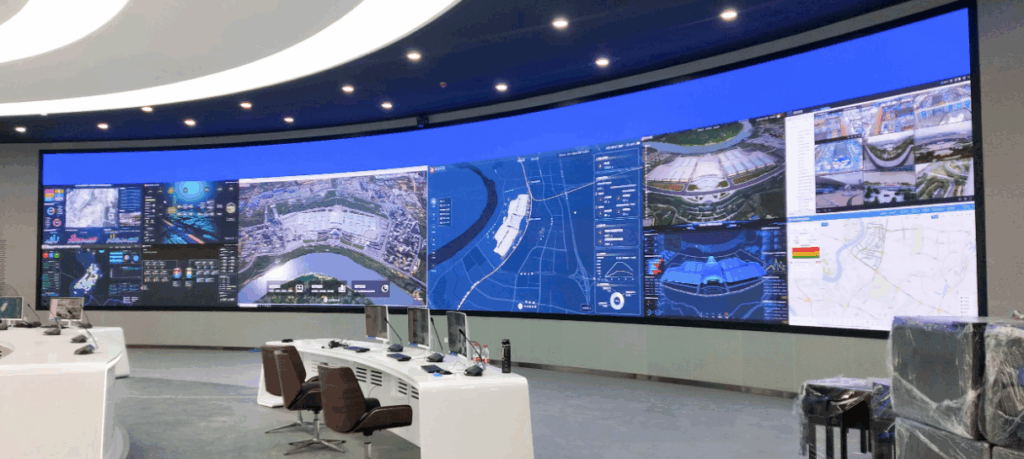
Best for: Writers, coders, researchers, and anyone who needs extended periods of uninterrupted focus sessions
This entire setup revolves around only one goal: zero distractions.
At the center of everything is a large, L-shaped or wide straight desk. A single ultrawide monitor sits on it — or two monitors side by side. Everything unnecessary is off the desk entirely.
No phone. No snacks. No random papers. Just you and your work.
The chair is fully ergonomic — lumbar support, adjustable armrests, proper seat depth. The light is warm and diffuse, with no glare on the screen.
The Deep Work Setup at a Glance
| Item | Recommended Spec | Estimated Cost |
|---|---|---|
| Wide or L-shaped desk | 55–72 inch surface | $120–$300 |
| Ultrawide monitor | 34 inch, 21:9 ratio | $250–$500 |
| Ergonomic chair | Lumbar + adjustable arms | $150–$400 |
| Desk pad | Full-surface leather or felt | $20–$50 |
| Noise-canceling headphones | Over-ear, ANC | $30–$150 |
The philosophy here is simple: eliminate all the obstacles between yourself and your work. No clutter means no excuses.
For knowledge workers who must consistently produce quality output, this is one of the most potent home office productivity setups.
Setup 2: The Dual-Monitor Trading and Analytics Station
Best for: Traders, data analysts, marketers, and project managers monitoring multiple streams at once
When your work requires bouncing between bits of information, two screens make all the difference.
One monitor handles your main task — a spreadsheet, a report, a dashboard. The other contains reference material, communication tools, or live data feeds. Your eyes move. Your brain stays in one place.
Research has consistently shown that dual monitors can increase productivity by 20–30% for tasks involving reference switching.
Making the Dual-Monitor Setup Work
- Position monitors at eye level, angled slightly inward
- Replace stands with a monitor arm — saves significant desk space
- Keep your dominant-task screen directly in front of you
- Use the secondary screen slightly to your side, not perfectly centered
Attach a cable management tray underneath the desk to hide cords from both monitors. A clean visual environment is calmer for your brain.
This arrangement pairs well with a standing desk base, which is detailed in the next section.
Setup 3: The Sit-Stand Ergonomic Powerhouse
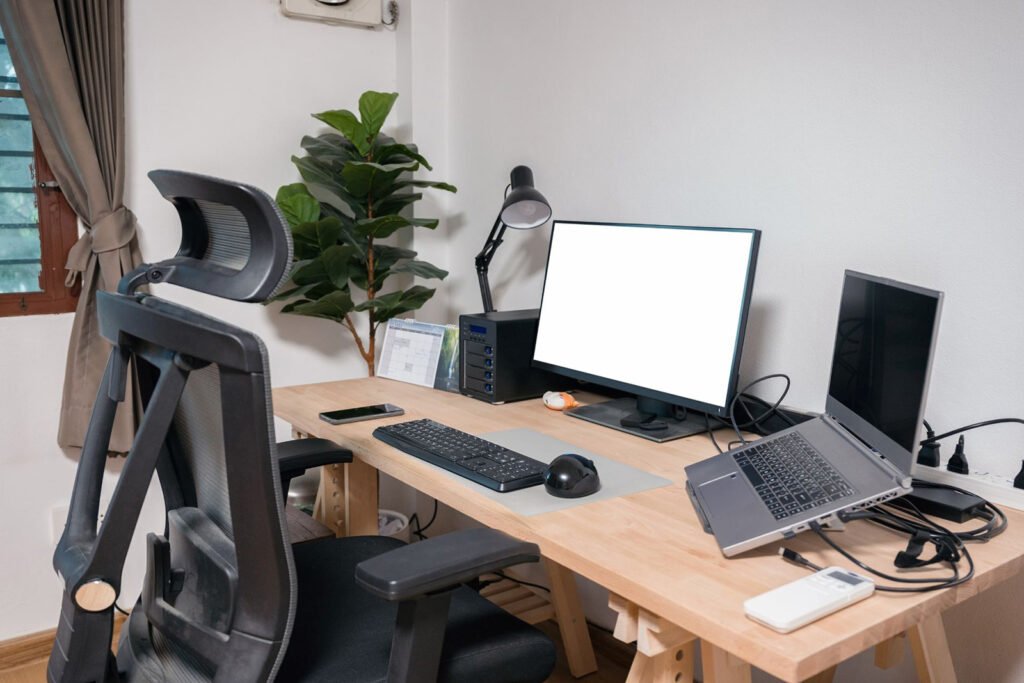
Best for: Those who work 6–10 hours daily and are looking to safeguard their long-term health
Sitting for 8 hours straight is physically damaging. Most health professionals will agree on this.
Standing all day isn’t a solution either. The real answer is movement — alternating between sitting and standing throughout the day.
A motorized sit-stand desk makes this effortless. You press a button. The desk rises. You stand for 30–45 minutes. You press it again. It lowers. You sit.
Sitting vs. Standing: The Productivity and Health Breakdown
| Factor | Sitting All Day | Sit-Stand Alternating |
|---|---|---|
| Lower back pain | Very common | Significantly reduced |
| Afternoon energy crash | Frequent | Much less common |
| Blood circulation | Restricted | Improved |
| Focus after lunch | Often poor | Generally maintained |
| Long-term health risk | Higher | Lower |
| Calorie burn (daily) | Lower | Slightly higher |
Pair your sit-stand desk with:
- An anti-fatigue mat for standing periods ($25–$45)
- A monitor arm to maintain screen height at eye level in both positions
- A cable spine or management sleeve to tidy up the moving desk cables
The sit-stand setup is one of the best home office productivity setups for long-term efficiency — because a healthier body produces better work for longer.
Setup 4: The Minimalist Zen Desk
Best for: Creative professionals, writers, therapists, coaches — anyone whose best work hinges on mental clarity
Less is more. This setup takes that concept literally.
The minimalist zen desk has almost nothing on it. A laptop or a single monitor. A notebook. One pen. Maybe a small plant.
That’s it.
No second monitor. No extra gadgets. No decorative clutter. Every item on the desk earns its place by being used every single day.
Why Minimalism Boosts Output
Visual clutter is a proven cognitive load. Every item your eyes land on — even for a millisecond — occupies a sliver of mental bandwidth. Over hours, that adds up.
A tidy desk leaves your brain free to focus on what’s important.
Building the Minimalist Setup
- Pick a desk with no drawers — drawers invite accumulation
- Use wall-mounted storage for anything that isn’t supposed to be on the desk
- Choose a neutral color palette — white, grey, natural wood tones
- One plant only — something small and easy to care for, like a succulent
The minimalist zen desk is probably the most deceptively simple home office setup for productivity on this list. It looks like almost nothing. It works like a machine.
Setup 5: The Creative Studio Workspace
Best for: Graphic designers, video editors, photographers, illustrators, and content creators
Creative work has different needs. You need screen real estate. You need color accuracy. You need tools right at your fingertips.
This setup delivers all three.
The desk is wide — at least 60 inches. A color-calibrated monitor sits front and center. If you edit video or otherwise work with large files, a second monitor handles your timeline, reference panels, or browser.
A drawing tablet sits to the left or right of the keyboard for digital illustration work. Cable management is tight — nothing should snag or pull.
Creative Studio Setup Essentials
| Tool | Purpose | Estimated Cost |
|---|---|---|
| Color-accurate monitor (IPS or OLED) | True color representation | $200–$800 |
| Drawing tablet (Wacom or similar) | Digital illustration/editing | $80–$350 |
| High-RAM laptop or desktop | Handles heavy creative software | $800–$2,000+ |
| Desk-mounted monitor arm | Frees surface, improves positioning | $30–$80 |
| Bias lighting (LED behind monitor) | Reduces eye strain during long edits | $15–$40 |
Bias lighting deserves special mention — an LED strip placed behind your monitor eliminates the jarring contrast between a bright screen and a dark room, which significantly cuts eye fatigue during marathon editing sessions.
For more remote and creative work-specific workspace setup inspiration, visit Remote Work Desk Setup — a solid resource packed with practical desk configuration advice for remote workers.
Setup 6: The Speed-Optimized Home Office
Best for: Virtual assistants, customer support reps, sales professionals, and anyone whose job moves fast
Some jobs are about volume and speed. Emails flying. Calls coming in. Tabs switching. Tasks moving.
For this type of work, friction is the enemy. Every extra second it takes to hunt down a file, toggle a window, or unmute on a call adds up across hundreds of interactions each day.
The speed-optimized setup is built to eliminate friction at every single point.
Key Elements of a Speed-Optimized Workspace
Hardware shortcut tools:
- A stream deck or macro keypad maps your most-used commands to physical buttons
- A high-DPI mouse with programmable side buttons speeds up navigation
- A mechanical keyboard with tactile feedback improves typing accuracy and speed
Software-side optimization:
- Use a window management app (like Rectangle for Mac or PowerToys for Windows) to snap windows instantly
- Keep a second browser profile open for work-only tabs
- Use a clipboard manager to store and recall frequently-used text snippets
Physical setup:
- Phone on a desk stand, always charged and visible
- Headset on a wall-mounted hook right beside the desk — one-second grab-and-go
- Water bottle and snacks within arm’s reach — minimize trips away from the desk
This type of home office productivity setup is less about aesthetics and much more about pure operational efficiency. Every second saved compounds across a full workday.
Setup 7: The Video Call-Ready Professional Studio
Best for: Coaches, consultants, executives, salespeople, and anyone on camera daily
If your job puts you on video calls, your setup is part of your professional brand.
A grainy webcam, poor lighting, and a cluttered background communicate something about you — even if it isn’t accurate. A crisp, well-lit, tidy setup tells an entirely different story.
The Video-Ready Setup Formula
Lighting: The largest improvement for video quality isn’t your camera — it’s lighting.
A key light (ring light or softbox) positioned slightly above and in front of your face eliminates harsh shadows. Add a fill light on the opposite side if you want a truly professional look.
Natural window light works too — just make sure you’re facing the window, not sitting with your back to it.
Camera: Your laptop webcam is almost certainly not suitable for professional daily calls. A 1080p or 4K webcam ($60–$150) is a worthwhile investment. For broadcast-quality results, a mirrorless camera with a capture card is the best route.
Background: Three options work well:
- A tidy, organized shelf or wall behind you
- A simple backdrop in a neutral color ($20–$40)
- A curated “bookshelf background” with intentionally placed props
Audio: Bad audio is worse than bad video. According to Wired, audio quality is the first thing people notice on video calls — a USB condenser microphone ($50–$100) or a quality headset makes a dramatic difference in how you come across.
Video Call Setup Cost Breakdown
| Item | Budget Option | Professional Option |
|---|---|---|
| Webcam | 1080p ($60–$80) | 4K or mirrorless ($150–$500) |
| Key light | Ring light ($25–$50) | LED panel softbox ($80–$200) |
| Microphone | USB condenser ($50–$80) | XLR with interface ($150–$300) |
| Background | Clean wall (free) | Custom backdrop ($20–$80) |
Setup 8: The Focus-First Distraction-Free Zone
Best for: Anyone who struggles with social media, notifications, and attention drift
This setup isn’t about hardware. It’s about systems.
The distraction-free zone combines a minimal physical environment with intentional digital boundaries. Together they create conditions where deep focus is the default — not a constant struggle.
Physical Side
- Desk faces a blank wall — no window, no TV, no door
- Phone is physically placed in another room during focus blocks
- A small analog timer (like a Time Timer) sits on the desk — visible, simple, commitment-making
- Only what is required for today’s work is on the desk — nothing else
Digital Side
- Website blockers (Freedom, Cold Turkey, or similar) lock distracting sites during work sessions
- Notifications turned completely off — all apps, all platforms, during focus blocks
- Email checked at scheduled times only — not constantly
- A single tab rule during deep work — one window, one task
According to studies conducted at the University of California Irvine, after an interruption it takes an average of 23 minutes to regain full attention. Defending your attention isn’t a luxury — it’s one of the core building blocks of productivity.
This is one of the most underrated home office productivity setups because it costs almost nothing to implement — yet the impact on output can be enormous.
Setup 9: The Home Office-Gym Hybrid
Best for: Health-conscious remote workers who struggle with sedentary workdays
Most people don’t realize how interconnected movement and productivity are.
Even modest physical effort during the workday — a brief walk, some stretches, a few minutes on a stationary bike — measurably improves attention, mood, and energy.
The home office-gym hybrid incorporates movement directly into the workspace.
Workspace + Movement Options
| Tool | How It Fits Into Your Workday | Cost |
|---|---|---|
| Under-desk bike pedals | Pedal during calls or easy tasks | $30–$80 |
| Treadmill desk attachment | Walk at 1–2 mph during writing or email | $300–$800 |
| Resistance bands on desk hook | Stretch breaks between focus blocks | $10–$20 |
| Pull-up bar in doorway | 1-minute active break every hour | $20–$40 |
| Foam roller under desk | Quick spinal decompression breaks | $15–$30 |
You don’t have to transform your office into a full gym. Just one movement tool — under-desk pedals, for example — disrupts sedentary patterns and maintains your energy levels throughout the day.
Setup 10: The Paper-Free Digital Powerhouse
Best for: Overwhelmed professionals drowning in documents, notes, and files who want a cleaner, faster workflow
Paper is slow. It piles up. It gets lost. It contributes to visual clutter that passively stresses you out.
The paper-free digital powerhouse ditches physical paperwork entirely — or as close to entirely as your work permits.
The Tools That Make It Work
Note-taking: A digital note-taking tablet (like a reMarkable or Kindle Scribe) mimics the feeling of writing by hand, along with the organizational and search capabilities of digital storage.
Document management: A document scanner app (Adobe Scan, Microsoft Lens) captures physical papers in seconds and converts them to searchable PDFs. No filing cabinet needed.
Desk surface: With no paper, your desk stays permanently clear. The visual serenity this creates is striking — and genuinely good for focus.
Cloud storage: Everything lives in the cloud — Google Drive, Dropbox, or Notion. Instantly accessible on any device, anywhere.
Paper-Free Setup Cost Estimate
| Tool | Cost |
|---|---|
| Digital note tablet (reMarkable 2) | $300–$400 |
| Scanner app | Free–$15/month |
| Cloud storage | Free–$10/month |
| Cable management kit | $15–$25 |
| Monitor arm (to free up desk space) | $30–$70 |
This setup pairs perfectly with the minimalist zen desk philosophy from Setup 4. Together they create a workspace that is visually serene, organizationally airtight, and genuinely engineered for peak performance.
How to Choose the Right Setup for You
Not sure which setup suits your workflow? Use this quick guide:
| Your Work Type | Best Setup Match |
|---|---|
| Long writing/coding sessions | Deep Work Command Center (#1) |
| Data-heavy, multi-source work | Dual-Monitor Station (#2) |
| 6–10 hour daily sessions | Sit-Stand Powerhouse (#3) |
| Creative, clarity-focused work | Minimalist Zen Desk (#4) |
| Design, video, photo editing | Creative Studio (#5) |
| High-volume, fast-paced tasks | Speed-Optimized Setup (#6) |
| Daily video calls | Video Call Studio (#7) |
| Distraction and focus struggles | Distraction-Free Zone (#8) |
| Health-first remote work | Office-Gym Hybrid (#9) |
| Paper-heavy workflows | Paper-Free Powerhouse (#10) |
Most people take elements from two or three setups. That’s perfectly valid — and often just right.
Must-Have Upgrades Every Setup Needs
No matter which configuration you select, these three upgrades are consistent across all of them:
1. Ergonomic chair or seat support. If you work more than 4 hours a day, this is not optional. Lumbar support, adjustable height, and proper seat depth keep your back — and your stamina — intact.
2. Eye-level monitor positioning. Your monitor should sit at about arm’s length away, with the top of the screen at or just below eye level. A monitor arm ($30–$80) makes this simple and adjustable.
3. Dedicated lighting. Natural light is ideal. When that’s not available, a warm LED desk lamp with adjustable brightness ($20–$50) protects your eyes and keeps your energy up through the afternoon.
These three components are the foundation of any effective home office productivity setup — whatever your budget or work style.
FAQs About Home Office Productivity Setups
Q: What is the most important element of a productive home office setup? The single most influential factor is a dedicated space — an area set aside for work only. Even a small corner, if treated consistently as a workspace, trains your brain to focus more quickly and deeply.
Q: What is a realistic budget for a home office setup? A functional, ergonomic home office productivity setup can be built for $200–$400. A high-performance professional setup typically runs $800–$2,000+. Prioritize ergonomics and lighting above aesthetics.
Q: Does monitor size actually affect productivity? Yes, meaningfully. A bigger screen means less constant scrolling and switching between windows. Ultrawide monitors (34 inch+) or dual-monitor configurations are especially valuable for multitasking, research-heavy work, and creative projects.
Q: How do I address back pain from working at a home desk? Start with your chair — lumbar support is key. Then check your monitor height (top of screen at eye level), keyboard position (elbows bent at 90 degrees), and sitting posture. Adding a sit-stand desk and taking movement breaks every 45–60 minutes makes a significant difference.
Q: What is the best lighting arrangement for a home office? If possible, place your desk facing a natural light source. For artificial lighting, ambient room light plus a warm, adjustable desk lamp works best. Avoid placing bright light directly behind your monitor — the contrast causes eye strain.
Q: How do I maintain focus and avoid distractions when working at home? Use physical cues (a designated chair, a clean desk) to signal your brain that it is work time. Pair these with digital tools like website blockers and notification silencing. Work in concentrated bursts of 45–90 minutes followed by genuine short breaks.
Q: Is a dedicated room necessary for a productive home office? No. Having a dedicated room does help, but it is definitely not necessary. What matters most is a consistent, clearly defined workspace — even a corner of a room with good lighting, minimal clutter, and a way to manage noise through a door or headphones.
Final Thoughts on Building Your Best Home Office
The ideal home office isn’t the priciest one. It is not the one with the biggest arsenal of gadgets or the most luxurious chair.
It’s the one that works for you — day in and day out.
Begin with the basics: a decent chair, good lighting, a tidy desk, and a defined work zone. Then layer in the elements of the setup that aligns with your work type.
Improve one thing at a time. Small changes compound faster than you think.
The right home office productivity setup isn’t merely about getting more done. It makes the work itself feel better. Cleaner. Calmer. More in control.
That’s the actual goal — not just more output, but a workspace that you truly want to show up to every morning.
Build it right. Then let it work for you.
Keywords: home office productivity setups, home office productivity setup, home office setup for productivity, home office productivity, productive home office