


You set your laptop on the kitchen table yet again.
Your coffee is getting cold, your neighbor is mowing the lawn and you’ve read the same paragraph four times.
Sound familiar?
Digital professionals — freelancers, developers, designers, writers, marketers, virtual assistants — spend most of their working lives in front of a desk. But most of them have never deliberately designed that desk to accommodate how they really work.
That’s a problem.
Your home office setup is not just an incidental background detail. It fuels your focus, your energy, your output — and yes, your income. A badly functioning workspace is costing you hours every week in distraction, discomfort and decision fatigue.
The good news is that addressing it doesn’t take a makeover or a big budget. It takes the proper setup for your specific work style.
This guide covers 6 mainstream productivity setups designed for different types of digital professionals. Read through all six. There’s a good chance one of them is just what you’ve been missing.
The True Cost of a Bad Work Environment
Before diving into the setups, let’s first discuss what an inadequate workspace is actually costing you.
Based on a study in the Journal of Environmental Psychology, individuals who spent time in messy, uncomfortable or dimly lit settings made more mistakes, completed their work more slowly and reported higher levels of stress than those in well-designed spaces.
For a digital professional billing by the hour or under a deadline, that’s not just inconvenient — it’s expensive.
Here’s a snapshot of how a poor setup compares to the returns of a good one:
| Problem | Impact on Work | Fix |
|---|---|---|
| Poor lighting | Eye strain, headaches, fatigue | Adjustable LED + natural light |
| Bad chair or posture | Back pain, restlessness, short focus sessions | Ergonomic seating |
| Cable clutter | Visual noise, mental distraction | Cable management system |
| No dedicated work zone | Brain can’t enter “work mode” | Defined desk area |
| Wrong monitor height | Neck strain, poor posture | Monitor riser or arm |
| Background noise | Constant attention interruption | Noise-canceling headphones |
All of these problems are solvable. And most solutions cost less than a single unbilled hour.
Let’s build your setup.
Setup #1 — The Deep Work Den: For Coders and Writers
Best for: Software developers, content writers, bloggers, copywriters
Some work requires undivided and total concentration. Coding a complex feature. Writing a long-form article. Drafting a sales page. These tasks call for what productivity author Cal Newport refers to as “deep work” — uninterrupted time spent on cognitively challenging tasks.
The Deep Work Den revolves completely around keeping you focused.
The Core Components
- A clean, large desk surface (at least 48 inches wide)
- A quiet mechanical or low-noise keyboard
- One large monitor (27-inch, 1440p or higher) or ultrawide
- Noise-canceling headphones or over-ear headphones
- A desk lamp with warm and cool light modes
- A small “Do Not Disturb” signal (a light or sign)
How to Arrange It
Minimalism is the guiding principle here. Your monitor should be right at eye level — the top of the screen should be even with your eyes when sitting up straight. There are no trinkets on the desk to distract you, only your keyboard, mouse and a notepad.
No phone. No snacks. No decorative clutter.
Keep your phone plugged in across the room during deep work sessions. Block distracting websites using a browser extension like Freedom or Cold Turkey. Work in 90-minute bursts — sleep scientist Nathaniel Kleitman found the brain naturally cycles through peaks and troughs in alertness about every 90 minutes.
The Sound Environment
Sound is incredibly important for this setup. Research published in the Journal of Consumer Research found that moderate ambient noise — about 70 dB — can actually improve creative performance relative to silence or loud environments.
Use apps like:
- Brain.fm — AI-generated music designed to boost focus
- Noisli — Customizable background sounds
- Coffitivity — Coffee shop ambient noise at just the perfect volume
What Makes This Setup Powerful
The Deep Work Den works because it eliminates all friction points between you and your task. When you sit down, your brain knows what’s coming. Work. That’s it.
Digital professionals who make the switch often say they complete 5–6 hours of work in what used to take a full 8-hour day.
Setup #2 — The Creative Command Center: Perfect for Designers and Video Editors
Best for: Graphic designers, UX/UI designers, video editors, animators, photographers
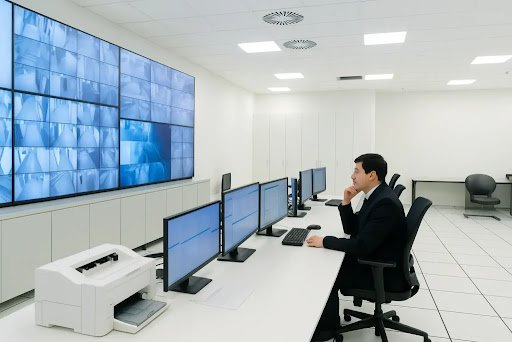
Creative digital work is visually intensive. You require screen real estate, color accuracy, fast storage and a workspace that enhances your creative energy — not drains it.
The Creative Command Center is built around visual performance and creative flow.
The Core Components
- One ultrawide primary monitor + one vertical secondary monitor (or two monitors)
- A color-accurate display (IPS or OLED panel, minimum sRGB 99%)
- A drawing tablet (Wacom or XP-Pen budget alternatives)
- A comfortable chair with adjustable armrests
- Bias lighting behind your monitor (reduces eye strain during long edits)
- External SSD drive for faster project storage
Dual Monitor Layout for Creatives
| Screen | Primary Use |
|---|---|
| Main (larger, color-accurate) | Active project — design canvas, timeline, editing window |
| Secondary (rotated vertically) | Reference images, client briefs, chat apps, browser |
For creatives, having your second monitor rotate into portrait mode is a game-changer. You can see more of a web page, reference image or client document without scrolling. It also inherently distinguishes “work” from “communication” — keeping distractions off your primary screen.
The Bias Lighting Trick
Bias lighting — putting LED strips behind your monitor — seems like a gimmick. It isn’t.
When your monitor is the brightest object in a dark room, your eyes are constantly adjusting between the bright screen and the darker surroundings. This leads to significant eye fatigue over time.
Bias lighting increases the ambient brightness of your environment, reducing that contrast. A basic USB-powered LED strip costs $10–$15 and will save your eyes during marathon editing sessions.
Set your bias lights to a neutral white (6500K) to match standard monitor calibration.
Creative Energy in Your Physical Space
Creative professionals benefit from slightly more visual stimulation in their workspace than deep focus workers. A mood board on the wall, a small piece of art or a plant within eyesight can help sustain creative energy.
Just keep it off the desk. The desk stays clear.
Setup #3 — The Video Call Pro Station: For Coaches, Consultants and Remote Managers
Best for: Online coaches, business consultants, project managers, customer success managers, anyone on calls 4+ hours per day
If your work lives on Zoom, Google Meet or Microsoft Teams, your setup is your brand.
Clients and colleagues assess your professionalism — whether they mean to or not — based on what they can see and hear on screen. Grainy webcam footage, hollow echo-y audio and a cluttered bookshelf behind you quietly drain your credibility before you utter a word.
The Video Call Pro Station fixes all of that.
The Core Components
- A dedicated external webcam (Logitech C920 or C922 — around $70–$90)
- A USB condenser microphone or lapel microphone (~$40–$80)
- A ring light or key light positioned in front of you (~$25–$60)
- A clean, intentional background (bookshelf, plain wall or soft backdrop)
- A second monitor for notes and reference during calls
- A pop filter for your microphone (~$8–$12)
The Video Quality Triangle
Good video presence on calls comes down to three things: light, background and framing.
Light: Your face must be the brightest thing in the frame. Place your key light or ring light directly in front of you, slightly above eye level. Never sit with a window behind you — you’ll appear as a dark silhouette.
Background: Keep it clean and intentional. A bookshelf with neatly arranged books signals intelligence and credibility. A plain, lightly colored wall is professional and distraction-free. Avoid virtual backgrounds — they look artificial and erode trust.
Framing: Position your webcam at eye level. Looking up into a camera (laptop on a table) makes you appear smaller and less authoritative. A simple stack of books or a dedicated webcam arm fixes this instantly.
Audio Is More Important Than Video
Here’s something most people get wrong: on a video call, bad audio is worse than bad video.
Research from Zoom’s own internal data confirms that participants rate calls with poor audio as significantly less professional, regardless of video quality. Your audience will forgive a slightly pixelated image. They will not forgive crackling, echo-heavy or muffled audio.
A $50 USB microphone is one of the highest-return investments a digital professional can make.
Setup #4 — The Portable Power Setup: For Digital Nomads and Hybrid Workers
Best for: Freelancers who work from multiple locations, hybrid employees, travel workers, digital nomads
Not every digital professional works from one fixed location. If you’re moving between home, coffee shops, co-working spaces and client offices, your setup needs to be flexible, lightweight and fast to deploy.
The Portable Power Setup gets you a professional-grade workspace anywhere you go — in under five minutes.
The Core Components
- A lightweight laptop stand (foldable, under 1 lb — brands like Nexstand or Majextand)
- A compact Bluetooth keyboard and mouse combo
- A USB-C hub with HDMI, USB-A and SD card ports
- Noise-canceling earbuds (not over-ear — more portable)
- A 65W USB-C portable charger
- A privacy screen filter for your laptop
- A compact desk mat that rolls up
The 5-Minute Deploy System
The magic behind this setup is having everything in one bag, organized so you can be working at full capacity within minutes of sitting down anywhere.
| Item | Packed Size | Setup Time |
|---|---|---|
| Laptop stand | Folds flat | 30 seconds |
| Keyboard + mouse | Slim pouch | 1 minute |
| USB-C hub | Pocket-sized | 20 seconds |
| Earbuds | Case on keychain | 10 seconds |
| Desk mat | Rolled, attached to bag | 1 minute |
| Total deploy time | ~3–5 minutes |
Staying Secure on Public Networks
Digital professionals working from public locations have a duty of care when it comes to protecting client data. Never connect to public Wi-Fi without a VPN. Services like Mullvad or ProtonVPN provide robust protection for around $5–$10 per month.
Your privacy screen filter ensures that people sitting next to you at a coffee shop can’t see your screen — an easy but generally overlooked security measure.
Battery and Power Management
Buy a 65W USB-C charger that supports your laptop, phone and other devices. It minimizes the number of cables you carry. Many modern laptops charge at full speed from a single USB-C connection, meaning you can leave your bulky laptop charger at home entirely.
Setup #5 — The Ergonomic Health-First Setup: For Long-Hours Professionals
Best for: Anyone working 8–10+ hours per day, those with existing back/neck/wrist pain, professionals over 35
Long hours at a desk are an occupational reality for most digital professionals. The accumulated physical toll — back pain, carpal tunnel, eye strain, tension headaches — is not inevitable. It is the result of a very poorly designed workspace.
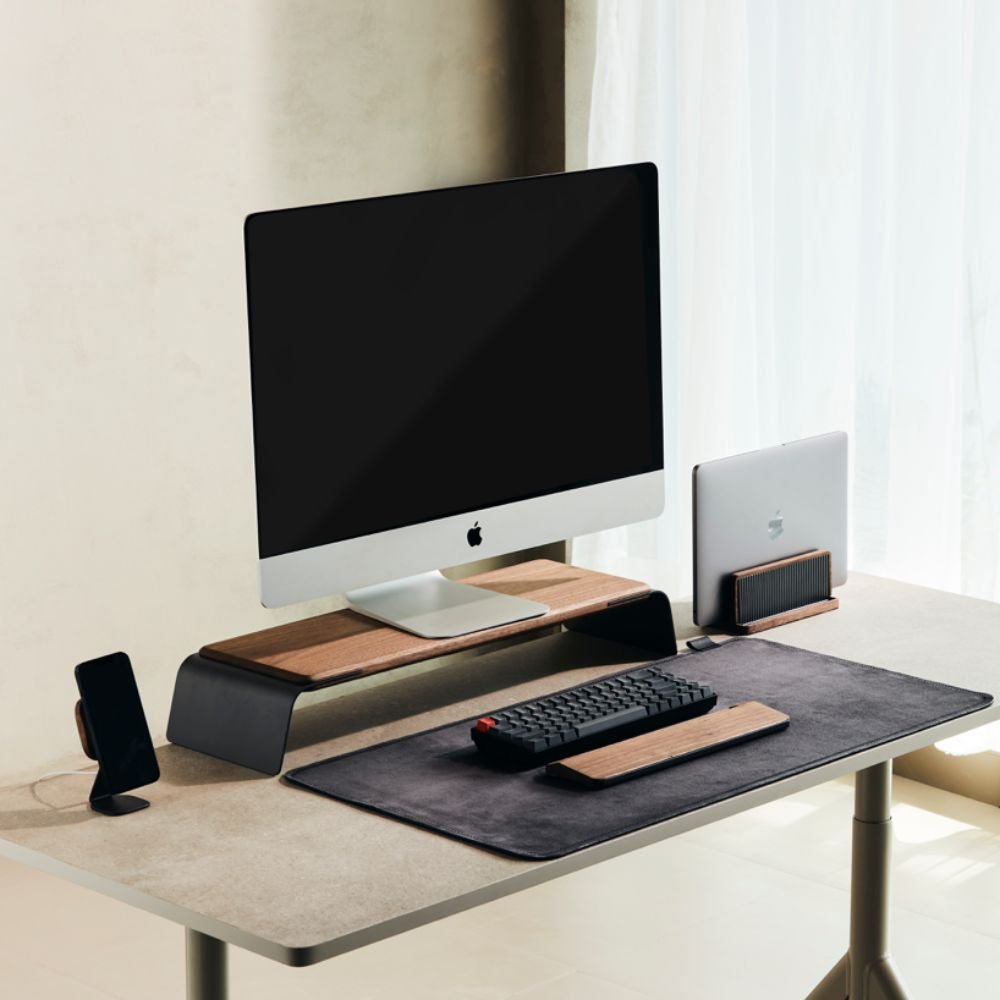
The Ergonomic Health-First Setup considers your body to be the most critical piece of equipment in your home office.
The Core Components
- A proper ergonomic chair (lumbar support, adjustable armrests, seat depth adjustment)
- A sit-stand desk or standing desk converter
- A monitor arm (holds your screen at the right height for any posture)
- A vertical mouse (reduces wrist rotation and forearm strain)
- A wrist rest for your keyboard
- An anti-fatigue mat for standing periods
- Blue light filtering glasses or monitor settings
The Ergonomic Checklist
Use this as your setup guide:
| Body Part | Correct Position |
|---|---|
| Eyes | Level with top third of screen |
| Neck | Straight, not tilted forward or back |
| Shoulders | Relaxed, not raised or hunched |
| Elbows | At 90 degrees, close to body |
| Wrists | Flat, not bent up or down |
| Hips | At 90 degrees, feet flat on floor |
| Lower back | Supported by chair lumbar support |
Print this checklist and pin it next to your desk. Check your posture every time you sit down until it becomes automatic.
The Movement Schedule
No ergonomic setup replaces movement. The human body was not built to sit still for hours on end.
Follow the 20-20-20 rule for your eyes: every 20 minutes, look at something 20 feet away for 20 seconds. This resets your eye muscles and significantly reduces digital eye strain.
For your body, shift positions or stand up every 45–60 minutes. A simple phone alarm works perfectly for this. Even a 90-second walk to the kitchen and back makes a measurable difference in how you feel by the end of the day.
Setup #6 — The Dual-Zone Focus and Collaboration Setup: For Team Leads and Entrepreneurs
Best for: Startup founders, team leads, product managers, entrepreneurs who manage people and do deep individual work
This is the most complex setup on the list — and the most powerful for the right person.
If your day involves toggling between independent deep work (strategy, writing, planning) and collaborative work (team calls, client meetings, async communication), a single-zone workspace creates constant context-switching friction.
The Dual-Zone setup solves this by giving you two physically distinct areas within the same room.
Zone A — The Focus Zone
This is your deep work space. It mirrors Setup #1 — minimal, quiet, distraction-free. A clean desk, one monitor, headphones, nothing else.
You come here for strategy, writing, planning and deep thinking.
No communication apps are open in this zone. Phone is in Zone B.
Zone B — The Collaboration Zone
This is your communication hub. It reflects Setup #3 — webcam, microphone, ring light, second monitor for reference.
You come here for calls, async video messages, team check-ins and client communication.
How to Physically Arrange a Dual-Zone Setup
| Zone | Location in Room | Key Equipment |
|---|---|---|
| Focus Zone | Desk facing wall or corner | Monitor, keyboard, headphones |
| Collaboration Zone | Desk facing room or window | Webcam, mic, ring light, second screen |
The two zones can be as close as a 90-degree pivot in your chair — you don’t necessarily need two separate desks. Many professionals use an L-shaped desk, with one arm as the focus zone and the other as the collaboration zone.
Time Blocking Between Zones
The Dual-Zone setup is most powerful when combined with intentional time blocking.
Sample daily structure for a team lead:
| Time | Zone | Activity |
|---|---|---|
| 7:00 AM – 9:00 AM | Focus Zone | Strategy, planning, writing |
| 9:00 AM – 11:00 AM | Collaboration Zone | Team standup, async replies |
| 11:00 AM – 1:00 PM | Focus Zone | Deep project work |
| 1:00 PM – 2:00 PM | Break | Lunch, movement, reset |
| 2:00 PM – 4:00 PM | Collaboration Zone | Client calls, reviews |
| 4:00 PM – 5:30 PM | Focus Zone | Wrap-up, planning next day |
That structure alone — without any other change — severely reduces the cognitive overhead of constant context-switching.
Which Setup Is Best for Your Work Style?
Not sure which setup fits you best? Use this quick reference guide:
| Your Work Style | Best Setup |
|---|---|
| You write or code for hours without interruption | Setup #1 — Deep Work Den |
| You design, edit video or create visual content | Setup #2 — Creative Command Center |
| You spend most of your day on calls | Setup #3 — Video Call Pro Station |
| You work from multiple locations | Setup #4 — Portable Power Setup |
| You have pain or work very long hours | Setup #5 — Ergonomic Health-First |
| You manage a team AND do individual deep work | Setup #6 — Dual-Zone Setup |
For more inspiration on building the perfect remote workspace, Remote Work Desk Setup is a specialty resource that shows digital professionals how to design home offices that reflect their actual work style.
The 3 Elements All Setups Share
No matter which setup you choose, the best home office productivity setups for digital professionals share three non-negotiable foundations:
1. Ergonomics first. If your body is in discomfort, your brain cannot concentrate. No setup works without physical comfort. Do this first before spending money on anything else.
2. A clear work signal. Your brain needs a reliably consistent cue when it’s time to work. A dedicated desk, a specific playlist, a morning ritual — something that signals “we’re working now.” Without this, you will fight distraction every single session.
3. Reduced friction. Every extra step between you and your work comes at an attention cost. Cable clutter, a slow computer, apps pinging constantly — these aren’t trivial annoyances. They compound over a full workday into hours of lost productivity.
Build around these three pillars, and any one of the six setups above will work hard for you.
FAQs
Q1: What’s the single best thing you can invest in for a productive home office?
If you had to choose only one, it’s your chair. You can compensate for many other weaknesses in a setup, but a bad chair causes you physical pain that makes everything else harder. A good ergonomic chair — even a budget one around $80–$120 — makes your entire work experience different.
Q2: Do I have to have a standing desk to be productive?
No — but movement matters. For many people, a full standing desk isn’t in the budget, but a standing desk converter ($40–$70) or simply setting a timer to stand every hour provides most of the same benefits. The aim is not to stand more. The aim is to sit less continuously.
Q3: How many monitors do digital professionals actually need?
There’s no single answer — it varies with the work you do. Writers and coders often work better with one large high-quality monitor. Two is genuinely beneficial for designers and video editors. Managers and team leads might prefer two or three. Don’t add screens just for looks — add them only if your workflow actually requires the extra space.
Q4: What’s the best background for video calls?
A real background beats a virtual one every time. A clean, lightly colored wall conveys professionalism and eliminates distraction. A well-organized bookshelf communicates credibility. Avoid backgrounds that are busy, cluttered or very dark. If your actual background isn’t call-ready, a simple fabric backdrop on a stand — about $20–$30 — will transform your video presence.
Q5: Can I build a professional home office setup in a very small space?
Absolutely. A wall-mounted fold-down desk, a compact ergonomic chair and a consciously minimalist approach to what stays on your desk can create a fully professional setup in as little as 20–25 square feet. Small spaces benefit most from vertical storage — floating shelves, wall-mounted monitors and pegboards free your floor area and keep your mind uncluttered.
Q6: How often should I reorganize or refresh my home office setup?
A good baseline is a light tidy once a week and a full reset every 3–4 months. Over time, desks accumulate items that gradually encroach on your workspace. A quarterly reset — clearing everything off, cleaning the surface, returning only what you actually use — keeps your setup sharp and your focus intact.
Q7: Is natural light really that important in a home office?
Yes, and significantly so. Natural light helps regulate your circadian rhythm, increases alertness and enhances mood while reducing the eye strain caused by relying solely on artificial lighting. If you can position your desk within eyeline of a window — without facing directly into it — do it. In the absence of natural light, a daylight-spectrum LED lamp (5000–6500K) is the next best thing.
Build It Once. Work Better Every Day.
Bottom line: digital professionals work hard. Your setup should work just as hard for you.
The 6 home office productivity setups for digital professionals in this guide aren’t about aesthetics or flexing on Instagram. They’re about function. Focus. Sustainability. Building a workspace that removes obstacles, guards your energy and helps you produce your best work — day after day.
You don’t have to create the ideal setup in a single night. Tackle your biggest pain point first. Bad chair? Fix that first. Too much noise? Start there. Working from multiple locations? Build the portable kit.
One intentional upgrade at a time. Your workspace — and your output — will compound.
The best home office setup for a digital professional is the one that gets out of your way and lets you do what you do best.