


Hybrid work has changed everything.
One day you’re at the office. The next, you’re at your kitchen table. And somehow you’re still supposed to be equally productive in both spaces.
The problem? Most home offices weren’t designed for that kind of adaptability. They’re either too casual to seem professional or too stiff to roll with the punches when your schedule changes. That’s why the proper home office productivity setup for hybrid work can be transformative.
This article examines 7 of the best hybrid worker setups. Each strikes a balance of performance, flexibility and style — without demanding an enormous budget or dedicated room.
Whether you’re jumping between home and office three days a week or simply trying to stay sharp on your remote days, one of these setups should work for you.
The Biggest Challenge of the Hybrid Worker Nobody Talks About
The vast majority of home office posts are all about desks and chairs. That’s significant, but it misses the underlying problem.
The biggest challenge for hybrid workers isn’t furniture. It’s context switching.
Your mind doesn’t immediately switch over to “home productivity mode” when you leave the office. And when you’re at home, it can be hard to feel connected to your workflow, your files or your focus.
A well-considered home office productivity setup for hybrid work solves this. It creates a space that communicates to your brain: this is where the real work happens. It mirrors much of the office experience to keep you sharp, while bringing you all of the comfort and flexibility that remote work promises.
That’s the point of all of the setups on this list.
The One Thing Every Hybrid Work Setup Must Have
Before we get into the 7 setups, here’s a short checklist of what distinguishes a hybrid-ready workspace from a casual home desk:
| Must-Have Feature | Why It Matters for Hybrid Workers |
|---|---|
| Reliable, fast internet connection | Stable bandwidth is essential for video calls and cloud tools |
| External monitor or laptop stand | Limits neck strain, increases screen real estate |
| Quality webcam and microphone | More time on camera than office workers — quality counts |
| Organized, minimal desk surface | Less mental noise while switching tasks |
| Comfortable, adjustable chair | Long days at home require lumbar support |
| Good lighting (natural or artificial) | Impacts energy levels and overall appearance on video |
| Cable management system | Keeps the space looking professional on camera |
Keep this checklist in mind as you peruse each setup below.
Setup 1: The Fast-Switch Hybrid Dock Station
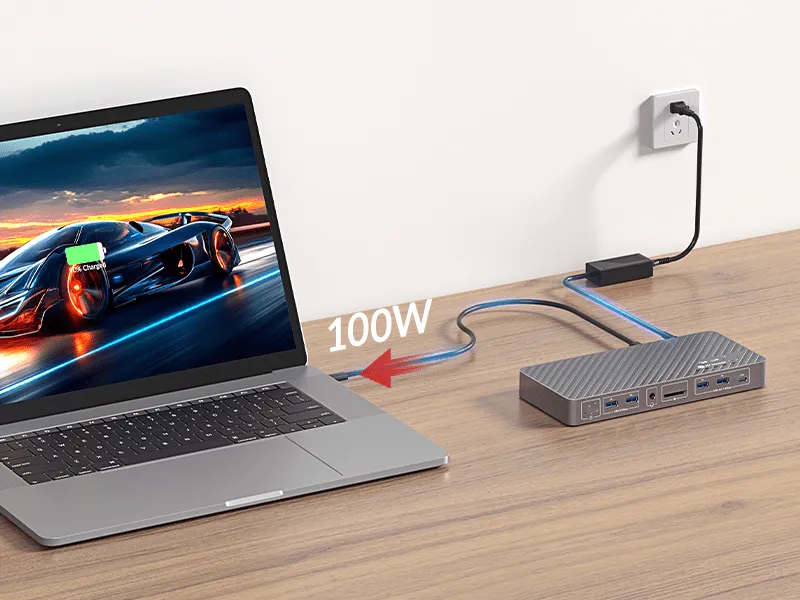
Best For: Workers who shuttle between home and office 3–5 days a week
Estimated Budget: $300–$600
If you’re constantly packing up your laptop and heading into the office, your setup should take seconds to connect — and seconds to disconnect.
This Setup in a Nutshell: A USB-C Docking Station
A docking station is the ultimate tool for hybrid workers. All it takes is plugging one cable into your laptop, and suddenly you’re connected to your monitor, keyboard, mouse, webcam and speakers. One cable in. Everything works. One cable out. You’re ready to go.
Look for docks from manufacturers like Anker, CalDigit or Plugable. A good docking station will cost $60–$150. It is the center of this whole arrangement.
A Desk Layout That Works in 30 Seconds
Keep the desk permanently set up with your monitor, keyboard and mouse. You arrive home, plug in a single cable, and you’re completely up and running within about 30 seconds.
Keep your screen elevated with a monitor arm. Use a wireless keyboard and mouse to avoid superfluous cables.
What Makes It Hybrid-Ready
This arrangement eliminates the largest point of friction in hybrid work: that annoying ritual of plugging and unplugging five different cables just to swap where you’re working.
With a one-cable dock, your home desk is as quick to get up and running as a hot desk at the office. You lose zero time on setup. You get all of your screen space straight away.
Setup 2: The Deep Focus Command Center
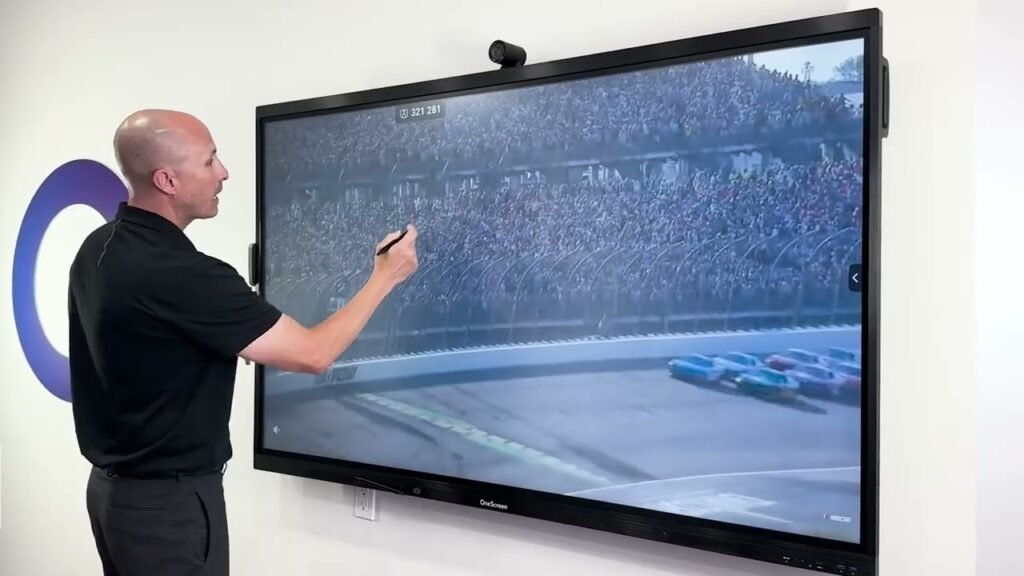
Best For: Analysts, writers, developers and those who need long, uninterrupted work blocks
Estimated Budget: $400–$700
Some work requires deep concentration. Reports. Code. Long-form writing. Financial analysis. Your environment is your first line of defense against distractions, which are the enemy for such tasks.
Designing for Focus
The entire setup is centered around one thing: strip everything that isn’t essential.
Begin with a clean, big desk. L-shaped desks work really well here, because they offer you space to spread out without cluttering up a tight space. Use one zone for screen work and one zone for notes or reference materials.
Use a desk with integrated cable management, or place a cable management tray underneath. When cables are out of sight, your mind reads the space as more peaceful and contained.
The Deep Work Monitor Setup
For deep focus, a single large ultrawide monitor (34-inch) works better than two standard monitors. Why? Because you remove the seam between screens and minimize the temptation to divide your attention. Everything exists within the same continuous field of view.
Good ultrawide monitors from LG or AOC begin around $200–$300. Pair with a monitor arm to keep your desk surface clear.
Sound and Distraction Control
At home, noise is one of the most difficult distractions to manage. Noise-canceling headphones are non-negotiable for this setup. Sony’s WH-1000XM5, or the budget-friendly Anker Soundcore Q45 (about $50) both work well.
If you live with others, add a small white noise machine on your desk. These cost $20–$40 and create a consistent audio environment that allows your brain to remain in work mode.
Setup 3: The Professional Video Call Studio
Best For: Managers, consultants, coaches, sales professionals and anyone who does video calls every day
Estimated Budget: $350–$650
In hybrid work, how you appear on video is key. Your camera setup is not just a vanity project — it broadcasts professionalism, attentiveness and credibility.
The Camera Triangle: Light, Angle, Background
These three things determine 90% of how you look on camera. Get them right and a budget webcam looks like a professional broadcast setup.
Light: Position your main source of light in front of you — a window or a ring light facing your face. Never work with a window behind you. That creates silhouette lighting, which makes you appear dark and hard to read.
Angle: Your camera should be at eye level or just above. Never below your chin — that angle is universally unflattering and casual-feeling. Use a monitor arm or a small shelf to make sure your webcam is at the right height.
Background: Keep it intentional. A bookshelf with well-organized books and one or two plants looks intelligent and put-together. One framed piece of art on a plain wall looks clean and minimal. Either works. A pile of laundry in the background does not.
Audio Upgrades That Change Everything
Your microphone matters more than your camera. A quality USB microphone in the $30–$80 range — such as the Blue Snowball iCE or Fifine K669 — will sound dramatically better than any built-in laptop mic.
If you don’t want a microphone on your desk, a decent headset with a boom mic (about $40–$70) will keep things tidy and still provide clear audio.
Lighting on a Budget
A basic ring light from Amazon ($20–$40) placed slightly above and in front of your face provides soft, uniform lighting. It removes shadows and makes you appear alert and present — even if it’s your third back-to-back call of the day.
How Hybrid Workers Spend Their Home Office Time
Understanding how you actually spend your remote days helps you design the right setup. Here’s a rough outline for the average hybrid worker:
| Activity | Average % of Remote Work Day |
|---|---|
| Video calls and virtual meetings | 30–40% |
| Deep focused work (writing, analysis, coding) | 25–35% |
| Email and communication tools | 15–20% |
| Administrative and file management tasks | 10–15% |
| Breaks and transitions | 5–10% |
For those spending the majority of the day on calls, go with Setup 3. For deep work, check out Setup 2. Most hybrid workers require a mix — hence setups 4 through 7 cover multipurpose configurations.
Setup 4: The On-the-Go Power Setup
Best For: Hybrid workers who also work from cafés, coworking spaces, or client locations
Estimated Budget: $200–$450
Hybrid work doesn’t all take place at a fixed desk. Some people move between three or four locations in a week. If that sounds like you, this setup is designed with portability in mind — without compromising productivity.
The Portable Monitor Advantage
A portable USB-C monitor is one of the most underused tools in modern work. These slim, lightweight screens (15–16 inches) hook up to your laptop with a single USB-C cable and give you an extra screen wherever you go.
Brands like Arzopa, ASUS or Lepow offer portable monitors in the $80–$150 range. They weigh less than 2 pounds and slip into most laptop bags.
Having two screens — even on the go — dramatically reduces the back-and-forth between apps that slows you down.
Pack-and-Go Peripherals
A compact wireless keyboard and mouse combo (Logitech MX Keys Mini + MX Anywhere Mouse, about $100 total) slips into your bag and works on almost any surface. These tools are noticeably better than typing on a laptop keyboard for hours.
Add a laptop stand that folds flat ($20–$30) to lift your screen at any desk or table. Your posture will thank you after a long day working from a café.
Connectivity on the Road
A mobile hotspot or SIM-enabled laptop removes your dependence on public WiFi. On days when the café connection is unreliable, having your own connection will prevent you from losing an hour of work to a dropped video call.
Setup 5: The Wellness-First Ergonomic Station
Best For: Anyone doing 7–10 hours of work a day at home
Estimated Budget: $400–$800
Hybrid workers often work longer hours on their home days compared with those in the office. With no commute and little reason to leave your desk, the hours add up quickly.
That makes ergonomics not just a comfort choice — it’s a performance choice.
The Sit-Stand Foundation
This setup’s centerpiece is a height-adjustable desk. You don’t have to get the most expensive motorized option. IKEA’s SKARSTA (manual crank) is around $220. FlexiSpot’s entry-level electric desk starts from around $280.
According to research from the British Journal of Sports Medicine, workers should aim to stand for at least two hours during an 8-hour workday, progressing up to four hours over time. A sit-stand desk makes this effortless.
Chair Investment: Where Not to Cheap Out
Your chair is worth spending real money on — even used. Look for chairs with adjustable lumbar support, seat depth and armrest height. A used Sihoo M18, HAG Capisco or Herman Miller Aeron can be found for $150–$350 on the used market.
A bad chair costs you energy, focus and eventually physical health. The right chair pays for itself in decreased fatigue and improved output.
Movement Reminders Built Into Your Workflow
Use a free app like Stretchly or Time Out to remind you to stand up, stretch and move every 45–60 minutes. These micro-breaks don’t diminish productivity — they preserve it over a full day.
If your budget allows, add a small balance board or an under-desk walking pad. They cost $50–$200 and make standing periods far more engaging.
Setup 6: The Dual-Role Home-and-Personal Hybrid Desk
Best For: Those who use the same desk for work and personal life
Estimated Budget: $250–$500
Not everyone has the luxury of a dedicated office space. Many hybrid workers use one and the same desk for work emails, weekend gaming, creative projects or personal browsing.
The challenge: how do you keep one desk serving two very different mental states without one bleeding into the other?
The Physical Divide Trick
Create a visual boundary between work mode and personal mode using a simple method: a desk mat. Use one desk mat for work hours (neutral, minimal, professional-looking) and a different one for personal time. Swapping the mat takes 10 seconds and signals a mental context switch to your brain.
It sounds too simple to work. It works.
Tech Switching Without the Chaos
If you have a desktop for personal use and a laptop for work, use a KVM switch (Keyboard, Video, Mouse switch). A KVM switch allows you to toggle between two computers using the same monitor, keyboard and mouse. Entry-level KVM switches cost about $25–$40.
This eliminates the need for two separate monitors and two sets of peripherals — saving space, money and visual clutter.
End-of-Day Rituals That Protect Your Downtime
Hybrid workers who use the same desk for work and personal life often find it difficult to mentally “leave” work. Develop a simple shutdown routine: close all work tabs, put your laptop to the side (or in a bag), swap your desk mat and change one element of your environment — such as the color of your lighting or desk lamp.
These small signals tell your brain it’s time to switch from work mode to rest mode — even if you haven’t moved an inch.
Setup 7: The Team-Ready Collaborative Hub
Best For: People who lead meetings, manage projects and attend multiple meetings daily in a hybrid arrangement
Estimated Budget: $450–$850
Some hybrid workers are not just showing up to meetings — they are leading them. Managing teams. Facilitating collaboration across time zones. For these roles, the home office must function like a mini broadcast studio.
The Multi-Camera and Screen Share Setup
A wide-angle webcam (such as the Logitech Brio or the Insta360 Link, $100–$150 and up) enables you to capture a wider field of view. This is helpful when you’re presenting physical materials, writing on a whiteboard or sharing your screen alongside your face.
Pair it with a second monitor dedicated to watching your participants while your primary screen holds your presentation or shared materials. When you can see everyone’s reactions in real time, you become dramatically more effective as a meeting facilitator.
The Whiteboard Wall Hack
Either mount a large whiteboard or use whiteboard paint on one section of the wall behind or beside you. This creates a physical space for brainstorming that your team can see on camera — much closer to the in-office experience than screen-sharing alone.
Whiteboards cost $30–$60 at office supply stores. Whiteboard paint runs about $30–$50 for a small section of wall.
Backup Plans Are Part of the Setup
For team leaders, connection drops and tech failures are more costly than for individual contributors. Build redundancy into your setup: a mobile hotspot as backup internet, a second charging cable and a basic external webcam even if your laptop camera is reliable.
Five minutes of setup planning prevents 30 minutes of embarrassment during a live team meeting.
Side by Side: Which Setup Fits Your Hybrid Work Style?
| Setup | Work Style | Key Tool | Budget |
|---|---|---|---|
| Quick-Switch Dock Station | Frequent office ↔ home switcher | USB-C Docking Station | $300–$600 |
| Deep Focus Command Center | Long concentrated work blocks | Ultrawide monitor + noise-canceling headphones | $400–$700 |
| Video Call Professional Studio | Daily video calls and meetings | Webcam + ring light + USB mic | $350–$650 |
| Portable Power Setup | Multiple work locations | Portable monitor + compact peripherals | $200–$450 |
| Wellness Ergonomic Station | Long daily hours at home | Sit-stand desk + ergonomic chair | $400–$800 |
| Dual-Role Hybrid Desk | Shared work and personal space | KVM switch + desk mat system | $250–$500 |
| Collaborative Team Hub | Team leads and meeting facilitators | Wide-angle webcam + dual monitors | $450–$850 |
5 Small Tweaks That Help Any Hybrid Setup Perform Better
You don’t need to overhaul everything to make a better hybrid workspace. These five adjustments deliver quick results:
- Add a second light source. Most home offices are lit from above (overhead light). Add a desk lamp or bias lighting to reduce eye strain and look better on camera.
- Use a dedicated work browser profile. Keep work bookmarks, extensions and tabs in one browser profile. Use a different profile for personal browsing. It’s free and helps minimize mental spillover between roles.
- Keep a physical notebook alongside your digital tools. Writing something by hand helps lock it into memory. A notebook on your desk creates a low-tech anchor in a high-tech environment.
- Keep water at your desk. Dehydration reduces focus. A water bottle within reach is one of the simplest performance tools available.
- Set a fixed work-start ritual. Make coffee, open your task list, put on headphones. Repeat the same sequence every morning. Your brain learns this ritual and starts engaging with work mode faster.
For more ideas and resources on building the ideal remote workspace, Remote Work Desk Setup is a go-to destination for hybrid workers at every stage of their setup journey.
FAQs: Home Office Productivity Setups for Hybrid Work
Q: What’s the most important piece of equipment for a hybrid work home office?
A: If you’re a hybrid worker who uses a laptop, a reliable docking station is the most practical tool you can own. It transforms your home desk into a complete workstation in seconds. After that, a good microphone makes the biggest difference to your day-to-day experience.
Q: How can I be as productive at home as I am in the office?
A: Set up consistent routines and a designated area to work — even if it’s just a section of a room. Your brain reacts to environmental cues. The more your home office looks and feels like a workspace, the more quickly your brain switches into work mode when you sit down.
Q: Do I have to have a separate room for a home office in order to be productive?
A: No. Many highly productive hybrid workers operate from a desk in a bedroom, living room or even a large closet. What matters more than the room is visual separation, good lighting and a consistent setup that tells your brain it’s work time.
Q: Should hybrid workers invest in a standing desk?
A: Yes — particularly for those working at home 6+ hours per day. A standing desk reduces fatigue, encourages better posture and helps maintain more consistent energy levels throughout the day. Hand-cranked options like the IKEA SKARSTA are an excellent entry point with little upfront investment.
Q: How can I look more professional on video calls from home?
A: Three things matter most: face the light source (ideally a window or ring light), position your camera at eye level and tidy your background. These three adjustments cost nothing but completely shift how you come across on screen.
Q: What budget do you suggest for setting up a hybrid home office from scratch?
A: A decent, fully functioning hybrid setup can be built for $300–$500 if you shop smart — using used monitors and chairs, budget peripherals from Logitech and a simple but sturdy desk. For a more polished, ergonomic setup, budget $500–$800. Above $800, you’re adding premium items that improve comfort and quality but are not essential.
Q: How do I manage distractions at home on remote work days?
A: Noise-canceling headphones are the single most effective tool. Beyond that, let the people you live with know your work hours, use focus apps such as Freedom or Cold Turkey to block distracting websites and build a consistent start-of-day routine that signals to your brain it’s time to get to work.
Your Hybrid Office Is a Tool — Use It Like One
Here’s the thing most people get wrong about hybrid work.
The office you visit has been professionally engineered for productivity — the right lighting, stable technology, ergonomic furniture, minimal distraction. You step in and your brain switches on.
Your home office needs to do the same job.
It doesn’t have to cost a lot of money. It doesn’t have to be a dedicated room. But it does have to be intentional. Every setup in this list is built on that premise: a home office productivity setup for hybrid work that respects your needs and gives your brain the environment it craves to perform.
Start with the setup that reflects how you work today. Add to it gradually. And note the details that most people overlook — the lighting, the cables, the camera angle, the chair.
Those details are the difference between a desk where you work and a workspace where you thrive.
Hybrid work isn’t going anywhere. Your office setup might as well be ready for it.