

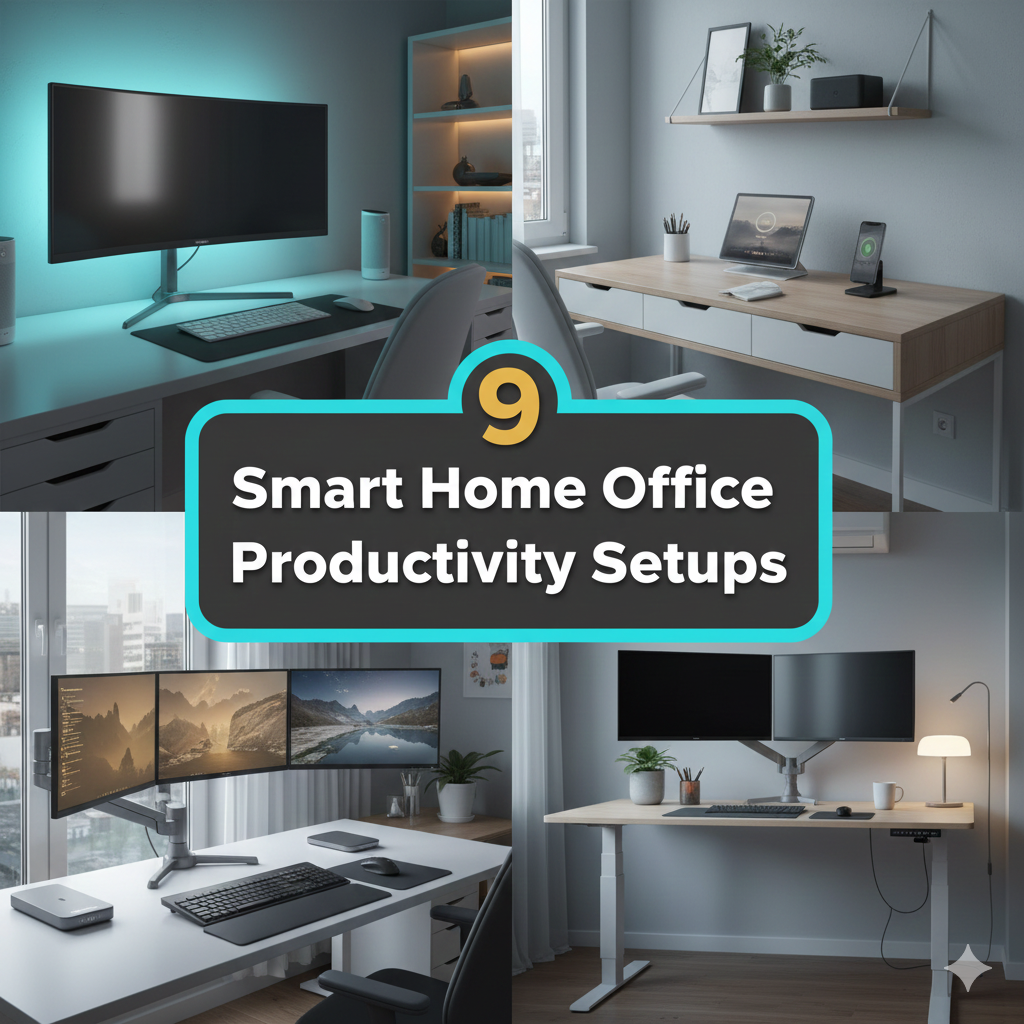
Remote work seems like a dream — no commute, no dress code, no coworker stealing your lunch from the fridge.
But here’s the part no one tells you: working from home is hard. Really hard. Distractions are everywhere. Your couch is five feet away. Your brain keeps forgetting that it’s supposed to be in “work mode.”
The not-so-secret weapon of the most productive remote workers? A setup that’s designed on purpose — not just thrown together.
You don’t need a Pinterest-perfect office or an enterprise budget. You need the right combination of space, tools, and habits. This guide takes you through nine smart setups that really work — each one built around its own work style, space size, and budget level.
Let’s get you set up for your best workspace yet.
What Actually Makes a Home Office Productive?
Before getting into the setups, it helps to know exactly what you’re trying to solve.
Most remote workers suffer from three things: distraction, discomfort, and disconnection. Your workspace either aids in the battle against those three things — or exacerbates them.
A productive home office productivity setup does five things well:
- Tells your brain that it’s time to get to work
- Keeps your body comfortable enough to concentrate for hours
- Reduces visual and physical clutter
- Provides an adequate light and sound environment
- Has everything within arm’s reach
Hold onto those five things as you look through the setups below.
Setup 1: The Deep Focus Command Center
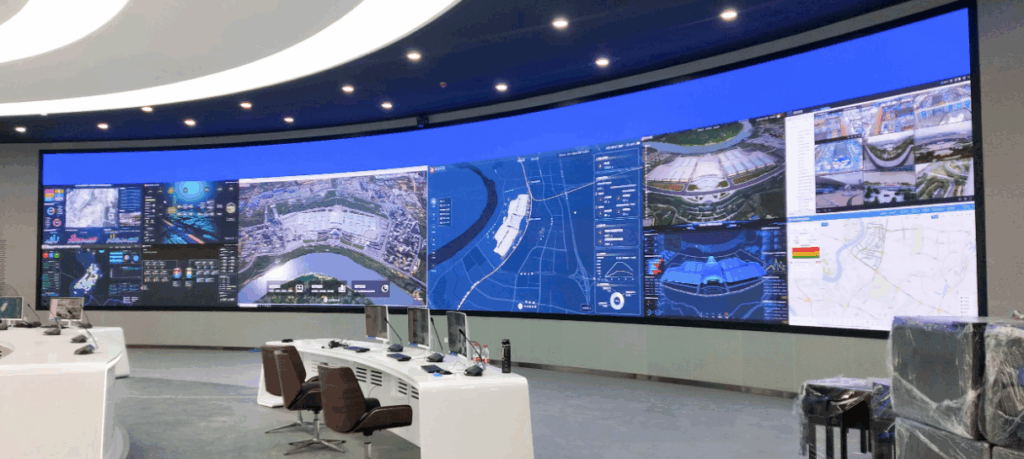
Best for: Writers, coders, analysts — anyone who requires long stretches of uninterrupted work
Some work demands total concentration. No notifications. No background chaos. Just you and the work ahead of you.
The Deep Focus Command Center is based on a single principle: get rid of everything that distracts you.
The Core Elements
A large, clear desk surface. The more visual distractions on your desk, the more your brain has to process — even without being aware of it. Choose a wide desk (minimum 48 inches) with as few items on it as necessary to complete your work.
A single, large monitor. One large screen (27–32 inches) wins out over two smaller ones for deep work. It holds your eyes and keeps your attention in one place.
Noise-canceling headphones. There is no negotiation in this setup. A nice pair mutes the ambient noise and serves as a physical signal to those around you that you’re in focus mode. Budget options from Anker or Mpow work well for $30–$60.
Blue light blocking or warm lighting. Harsh overhead lights increase fatigue. Replace them with a warm desk lamp during long sessions.
Productivity Boost Breakdown
| Element | What It Does | Approximate Cost |
|---|---|---|
| Wide desk (48″+) | Reduces visual clutter | $60–$150 |
| 27–32″ monitor | Keeps focus in one direction | $150–$250 |
| Noise-canceling headphones | Blocks distractions | $30–$60 |
| Warm desk lamp | Reduces eye fatigue | $20–$40 |
| Total | $260–$500 |
Pro Tip: Pair this setup with the Pomodoro Technique — 25 minutes of dedicated work, followed by a 5-minute break. Apps like Forest or Focus Keeper are free and work a charm.
Setup 2: The Dual-Screen Power Hub
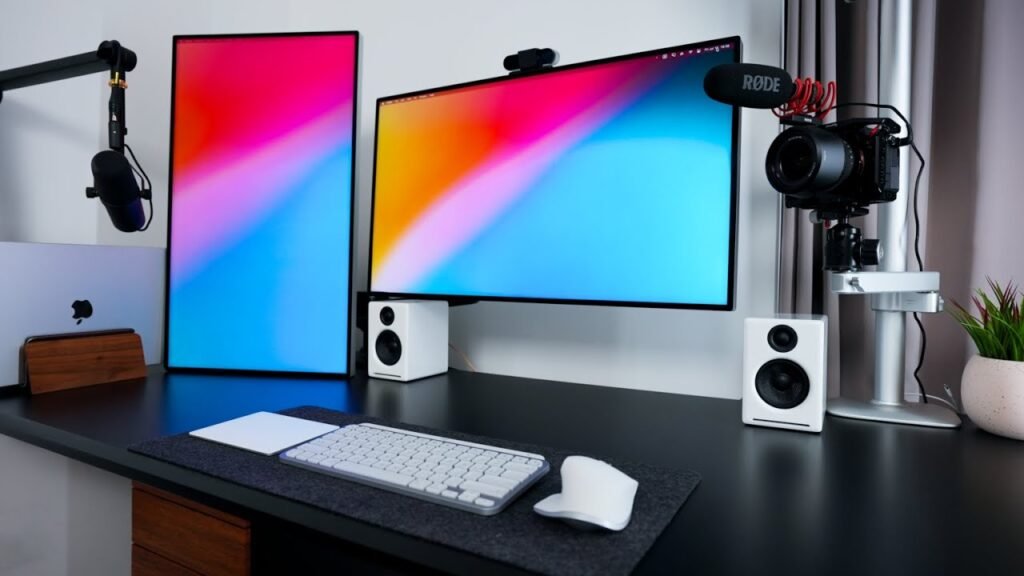
Best for: Multitaskers, virtual assistants, content creators, and project managers
If your work requires you to constantly switch between apps, documents, tabs, and tools — one screen is holding you back.
A dual-screen setup doesn’t just double your screen real estate. It rewires how your brain functions. According to research from Jon Peddie Research, multiple monitors can increase productivity by up to 42%.
How to Build It Right
Primary screen: Your main work monitor — ideally 24–27 inches. This is where your active task lives.
Secondary screen: Your laptop screen, or a second monitor. This is where your reference material, email, Slack, or calendar lives.
Monitor arm: Skip the stands. A dual monitor arm ($25–$50) clears desk space and helps you angle both screens just right.
External keyboard and mouse: Once you go dual screen, you need a full desktop setup. Logitech has a wireless keyboard and mouse combo for $25–$45 that makes the whole thing work better.
Screen Placement Tips
Position your primary monitor straight in front of you. The secondary screen should be off to the side — about 30 degrees. This decreases how much you turn your neck and keeps the primary workspace front and center.
Setup 3: The Quiet Corner Nook
Best for: People in shared homes, families with kids, or anyone in a noisy environment
You don’t need a separate room to have a productive workspace. You need a dedicated zone — a place your brain associates with work and nothing else.
The Quiet Corner Nook transforms any unused corner of a room into a focused micro-office.
Building Your Nook
Step 1 — Claim the corner. Find a corner of your home where there is limited traffic. It can be a corner of your bedroom, the end of a hallway, or even a large closet.
Step 2 — Add a corner desk. L-shaped corner desks help maximize the space, with plenty of room to spread out. Budget versions on Amazon cost $70–$120.
Step 3 — Use a room divider or curtain. A folding room divider ($30–$60) creates a physical and visual barrier. A curtain on a tension rod works too.
Step 4 — Control the sound. A small white noise machine ($20–$35) or a free app like Noisli can mask household sounds without you needing to wear headphones all day.
Step 5 — Keep it consistent. Only work in this nook. Don’t scroll social media here. Don’t eat here. As soon as you blend activities, your brain stops treating it as a work zone.
Why This Works Psychologically
It’s called context-dependent memory. Your brain connects environments to behaviors. The more consistently you work in a particular spot, the quicker your brain transitions into focus mode when you sit down there.
Setup 4: The Ergonomic Wellness Workstation
Best for: Anyone spending 6+ hours per day at a desk
Here’s a harsh reality: when your body hurts, your work suffers. Back pain, wrist strain, neck aches — these are not just physical issues. They sap mental energy and stifle focus.
The Ergonomic Wellness Workstation is the setup that takes your health seriously — without breaking the bank.
The Ergonomic Checklist
| Body Part | Correct Position | Budget Fix |
|---|---|---|
| Eyes | Top of screen at or just below eye level | Monitor stand ($15–$25) or books |
| Neck | Neutral, not tilting forward | Raise monitor, add headrest |
| Back | Supported at lumbar curve | Rolled towel or lumbar cushion ($12–$20) |
| Elbows | 90–110 degree angle | Adjust chair height |
| Wrists | Flat or slightly downward | Wrist rest pad ($8–$15) |
| Feet | Flat on floor | Footrest ($15–$25) if needed |
Best Budget Ergonomic Chairs
You don’t have to drop $1,000 on a Herman Miller. These budget chairs provide real ergonomic support:
- Hbada Ergonomic Chair — ~$90, adjustable armrests and lumbar support
- Furmax Office Chair — ~$70, breathable mesh back
- GABRYLLY Ergonomic Chair — ~$200, best budget pick with full adjustability
Remember: No chair, even the fanciest one, can substitute for movement. Take a break every 45–60 minutes to stand and stretch.
Setup 5: The Minimalist Zen Desk
Best for: Overwhelmed people, creative thinkers, and overthinkers
Clutter is the enemy of calm. And calm is the bedrock of focus.
The Minimalist Zen Desk takes a ruthless approach: if it doesn’t perform a daily function, it doesn’t live on the desk.
What Stays, What Goes
Stays on the desk:
- Laptop or monitor
- One notebook and one pen
- A small plant (optional but great for mood)
- Desk lamp
- Your current drink
Goes in a drawer or off the desk entirely:
- Extra cables (use a cable box or clips)
- Paperwork you’re not actively using
- Extra stationery
- Decorative items that don’t add calm
The Color and Material Rule
Limit your desk space to two or three neutral colors. White, light wood, and black work well together. Steer clear of a confused mix of colors and materials — it adds to visual noise that you may not even be aware of.
Minimalist desk accessories:
- Ceramic pen holder: $8–$15
- Slim wireless charging pad: $12–$20
- Simple wooden monitor stand: $20–$35
- Cable management box: $15–$25
A clean desk isn’t just aesthetically pleasing. It actually reduces your cortisol levels — the stress hormone — and helps you think more clearly.
Setup 6: The Standing Desk Hybrid Station
Best for: Health-conscious remote workers and anyone who feels sluggish after long hours of sitting
Sitting for 8 hours straight is genuinely bad for you. Research has shown that prolonged sedentary behavior links to a greater incidence of back pain, poor circulation, and low energy levels throughout the day.
The Standing Desk Hybrid Station lets you alternate between sitting and standing — and that small shift can have a real impact.
Your Standing Desk Options by Budget
| Option | Description | Cost |
|---|---|---|
| DIY book stack | Stack books under laptop | $0 |
| Desktop riser | Sits on existing desk, adjustable | $50–$90 |
| Manual crank desk | Full desk, adjust height manually | $120–$180 |
| Budget electric desk | Full desk, electric adjustment | $160–$220 |
The Ideal Sit-Stand Ratio
You don’t have to stand all day — that’s just as hard on your body. Aim for the 1:1 ratio to start: one hour sitting, one hour standing. As you build stamina, shift to 2:1 in favor of standing.
Anti-fatigue mat: If you’re standing on a hard floor, get one of these. They take a tremendous amount of pressure off your joints. Good options start at $20–$30.
Cable management: When your desk rises and lowers, loose wires become tangled bundles. Bundle cables with a cable sleeve or velcro ties.
Setup 7: The Creative Studio Corner
Best for: Designers, video editors, podcasters, artists, and content creators
Creative work has different demands than traditional office work. You need room to think visually, source material at hand, and a setup that inspires rather than stifles.
What Makes This Setup Different
Color and texture matter here. Unlike the minimalist setup, the Creative Studio Corner embraces personality. A mood board on the wall. A plant or two. Artwork you love. These elements keep your creative energy flowing during long sessions.
The gear priorities shift too. Color-accurate monitor? Essential. Drawing tablet? Possibly. Good speakers for music? Absolutely.
Creative Setup Gear List
| Item | Why It Matters | Budget Option |
|---|---|---|
| Color-accurate monitor | True color representation | Asus VA24EHE (~$120) |
| Monitor calibration tool | Ensures accurate colors | Datacolor Spyder (~$80) |
| Drawing tablet (if needed) | Natural creative input | Wacom Intuos Small (~$80) |
| Decent speakers | Music fuels creative energy | Edifier R1280T (~$90) |
| Pegboard wall organizer | Visual organization + inspiration | IKEA SKÅDIS (~$20) |
Natural light is especially important for creative work. Try to position your setup next to a window if possible. If not, use a daylight LED lamp with a high CRI (Color Rendering Index) of 90+. It displays colors accurately and is easier on the eyes.
Setup 8: The Video Call-Ready Professional Setup
Best for: Remote team members, managers, coaches, consultants, and anyone on calls all day
If your workday consists of Zoom, Google Meet, or Teams calls, your setup needs to look and sound professional — even if you’re seated in a spare bedroom.
The Three Most Important Things On Camera
1. Lighting Front-facing light is everything. A ring light ($25–$50) or LED panel positioned in front of you eliminates shadows and makes you look alert and professional. Never sit with a window directly behind you — it turns you into a silhouette.
2. Audio Your laptop’s built-in microphone picks up everything — keyboard clicks, background noise, room echo. A USB condenser microphone like the Blue Snowball ($50–$70) or the Fifine K669 (~$30) is a night and day difference. People will actually want to hear what you have to say.
3. Camera Most built-in laptop webcams are grainy and unflattering. A budget 1080p webcam like the Logitech C920 (~$70) or Anker PowerConf C200 (~$50) will change the way you experience call quality.
Video Call Setup Cost Summary
| Item | Budget Pick | Cost |
|---|---|---|
| Ring light | Neewer 10″ ring light | $25–$40 |
| USB microphone | Fifine K669 | $30–$50 |
| 1080p webcam | Anker PowerConf C200 | $45–$70 |
| Clean background/backdrop | Fabric backdrop or tidy shelf | $0–$30 |
| Total | $100–$190 |
Pro Tip: Raise your camera to eye level. Looking slightly down into a camera is unflattering and subconsciously signals low status. Use a laptop stand, a stack of books, or a small shelf to bring that lens up to face height.
Setup 9: The Complete Remote Office Experience
Best for: Full-time remote workers who want everything dialed in
This is the full package. Setup 9 takes the best elements from every other setup on this list and puts them together into one cohesive, professional, and productivity-optimized workstation.
It’s not the cheapest option — but it is still far less expensive than outfitting a traditional office. And once it’s done, it’s done.
Everything That Goes Into It
Furniture:
- Height-adjustable standing desk: $160–$220
- Ergonomic chair with lumbar support: $90–$200
Tech:
- 27″ primary monitor: $150–$200
- Laptop as second screen (or second monitor)
- Dual monitor arm: $35–$60
- Wireless keyboard and mouse combo: $30–$50
Audio/Visual:
- USB microphone: $30–$60
- 1080p webcam: $50–$70
- Noise-canceling headphones: $40–$80
Lighting:
- Ring light or LED desk lamp: $25–$50
- Bias lighting strip behind monitor: $15–$25
Organization:
- Cable management box and clips: $15–$25
- Desk organizer tray: $10–$20
- Pegboard or wall shelf: $15–$30
Full Investment Breakdown
| Category | Estimated Cost |
|---|---|
| Furniture | $250–$420 |
| Tech & Peripherals | $215–$380 |
| Audio/Visual | $120–$210 |
| Lighting | $40–$75 |
| Organization | $40–$75 |
| Grand Total | $665–$1,160 |
Yes, that is a real investment. But spread across a year of remote work, that’s roughly $55–$97 per month for a professional-grade setup that supports your health, your focus, and your income.
For more in-depth desk configuration guides, gear comparisons, and layout inspiration to pair with any of these setups, Remote Work Desk Setup is a great resource packed with practical tips for building your ideal workspace.
Side-by-Side: Which Setup Is Right for You?
| Setup | Best Fit | Budget Range | Key Feature |
|---|---|---|---|
| Deep Focus Command Center | Writers, coders | $260–$500 | Single large screen + silence |
| Dual-Screen Power Hub | Multitaskers | $200–$350 | Double the screen, double output |
| Quiet Corner Nook | Shared homes | $130–$230 | Dedicated micro-workspace |
| Ergonomic Wellness Workstation | Long-hour workers | $150–$300 | Body-first comfort |
| Minimalist Zen Desk | Overthinkers | $100–$200 | Clutter-free calm |
| Standing Desk Hybrid | Health-focused workers | $80–$220 | Sit-stand flexibility |
| Creative Studio Corner | Designers, creators | $200–$400 | Color + inspiration-driven |
| Video Call-Ready Setup | Call-heavy professionals | $100–$190 | Pro audio and visual |
| Complete Remote Office | Full-time remote workers | $665–$1,160 | All-in-one powerhouse |
6 Habits That Make Any Home Office Setup Work Better
Even a perfect home office productivity setup won’t help you if your habits sabotage it. Here are six free habits that pay dividends right away:
- Start with a written daily plan. Before you open your laptop, write down your three most important tasks for the day. It takes two minutes and provides immediate direction.
- Set a hard stop time. Remote work seeps into personal time fast. Determine when your workday ends — and then actually stop at that time.
- Do a desk reset every evening. Before you finish work, spend three minutes clearing your desk. Tomorrow-you will thank you.
- Keep your phone in another room during deep work. Or at least face down and on silent. Notifications are productivity killers.
- Change your clothes. Dress for work — even casually. Pajamas send the opposite message.
- Use your commute time differently. You no longer leave home — so use that saved time wisely. A brief walk before work is a great way to transition into focused mode.
FAQs: Home Office Productivity Setups
Q: What is the most important element of a productive home office setup?
Consistency of location matters more than any single piece of equipment. Having a dedicated spot you only use for work trains your brain to switch into focus mode on its own. After that, ergonomics and lighting are the highest-impact upgrades.
Q: How much should I realistically invest in a home office setup?
That depends on your type of work and how many hours you log in a day. A functional, comfortable setup can be done for $150–$300. A professional-grade setup runs $600–$1,200. Begin with the basics and incorporate upgrades over time — don’t attempt to build the perfect setup all at once.
Q: Can I be productive in a shared space or open living area?
Yes — but with the right boundaries. Use a room divider, a consistent position, noise-canceling headphones, and an established work schedule. The trick is to make your workspace feel separate from the rest of the room, even if they technically occupy the same space.
Q: Are standing desks actually worth it for remote workers?
For most people, yes. The problem isn’t the act of standing — it’s breaking up long periods of sitting. Even a budget desktop riser ($50–$80) makes that option possible without a complete desk replacement. If you sit more than 6 hours a day, the investment is worth it.
Q: What is the quickest, cheapest way to improve my current home office setup?
Clean your desk completely. Remove everything that doesn’t support what you’re currently working on. Then sort out your lighting — add a daylight desk lamp if you don’t have one. Both of these changes cost very little and have an immediate, visible impact.
Q: How can I make my home office look professional on video calls without spending a lot?
Three things: front lighting (a $25 ring light), a clean or simple background, and camera at eye level. That combination will put you ahead of 90% of people on any video call. You don’t need an expensive camera or a studio backdrop.
Q: Do plants really help with productivity?
According to research from the University of Exeter, adding plants to a workspace can increase productivity by up to 15%. They also improve air quality and alleviate stress. A small pothos, snake plant, or succulent costs $5–$12 and takes nearly zero maintenance.
One Decision Begins Your Next Step
You now have nine great home office productivity setups to choose from. Each is built around a real problem — distraction, discomfort, noise, clutter, bad lighting, poor video calls — and each solves it at a price that makes sense.
The most important thing to remember: you don’t need to build the perfect setup before you start being productive. Choose the one setup that solves your biggest problem right now. Implement that. Get comfortable with it. Then add the next upgrade on top.
Progress beats perfection every single time.
Whether you’re working from a studio apartment or a spare room, building from scratch or improving what you already have, the right setup will transform how you feel about remote work completely.
Start today. One desk. One decision. One focused step forward.