

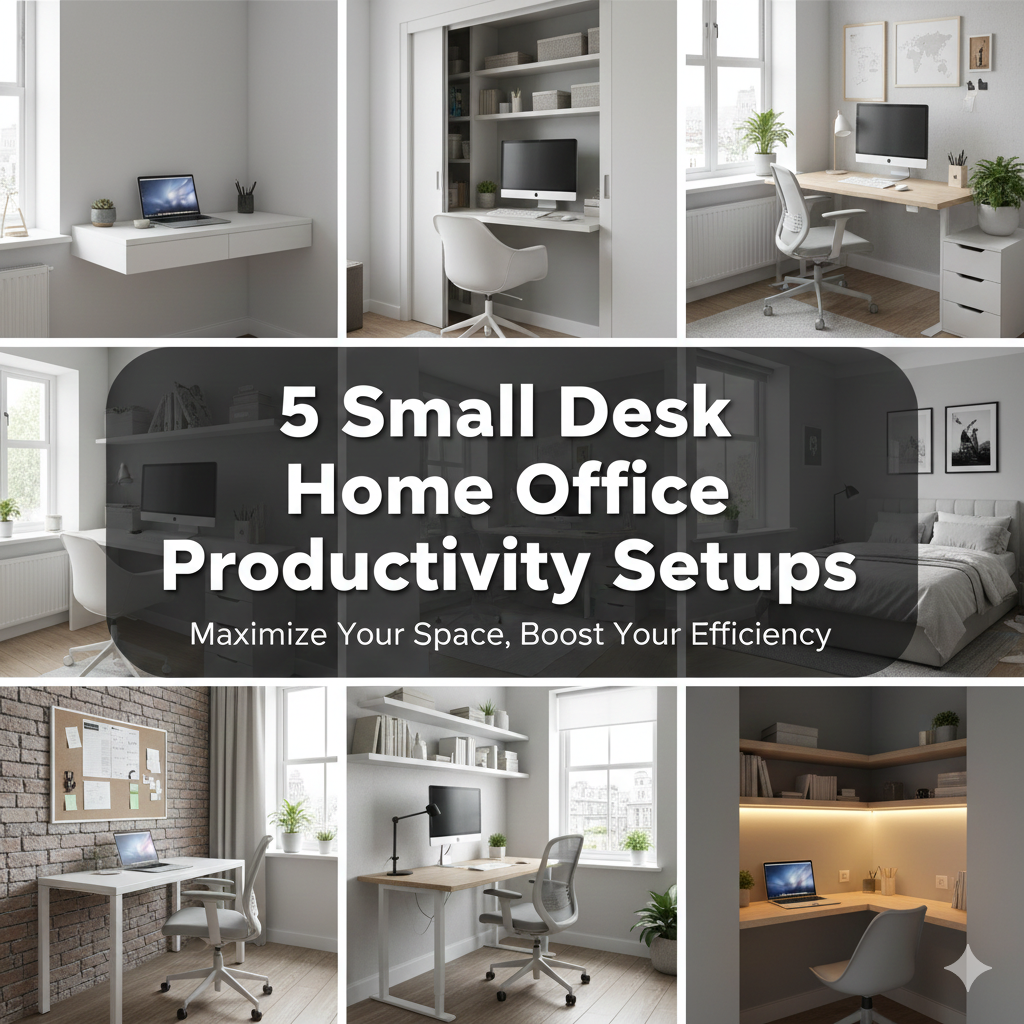
Just because you work from a small desk doesn’t mean you need to work with small results.
Millions of people are working from home these days, and many don’t have a big office or a sprawling desk. Many are cramming a full workday into a corner of their bedroom, an unused nook in the hallway, or a small patch in the living room.
The good news? Little desks can work miracles too — if you configure them properly.
This guide contains 5 proven home office productivity setups made for small desks. Each setup comes with layout advice, necessary tools, and strategies you can implement today. Whether you’re a student, remote worker, freelancer, or content creator, there’s a setup for you here.
Let’s get into it.
How Your Desk Setup Influences More Than Just Comfort
Most people assume a cluttered or crowded desk is simply annoying. But it’s really so much more than that.
Your environment directly affects your mental acuity. If your desk is messy, you’re subjecting your brain to additional visual information it has to process. That causes mental fatigue faster. Research from the field of environmental psychology suggests a clean, intentional workspace makes it easier for the brain to transition into “work mode.”
A well-designed home office productivity setup doesn’t just look good in photos — it actually works for you:
- Start tasks without procrastinating
- Stay focused for longer stretches
- Alleviate physical stress from bad posture
- Go home feeling productive at the end of your workday rather than exhausted
The thing about small desks, though, is that they compel you to be intentional. Everything on the surface must earn its place. Used correctly, that limitation becomes a superpower.
What Does a Truly Productive Small Desk Setup Look Like?
Before diving into the five setups, it’s worth knowing what makes a productive small desk — and one that only looks organized on Pinterest.
The Three Core Principles
1. Vertical Space Is Your Best Ally
The flat surface of the desk is all that most people think about. But the area above it — walls, shelving, monitor arms — often tends to be entirely wasted. A productive small desk setup uses vertical space aggressively.
2. Cable Management Changes Everything
Nothing kills small desk energy more than a rat’s nest of cables. When wires are tucked away or neatened, the desk seems twice as big. This is not merely aesthetic — less visual distraction means less mental noise.
3. Only Keep What You Use Daily
If you haven’t touched something in three days, it doesn’t belong on your desk. Everything else should be in a drawer, on a shelf, or in an adjacent storage box.
Setup #1 — The Minimalist Focus Station
Best For: Writers, coders, deep-work professionals
This is the most minimalist of all five home office productivity setups. The idea here is to cut things down to the bare necessities. Nothing on the desk surface except things you use every day.
What the Minimalist Focus Station Looks Like
You will have only three things on the surface:
- A laptop or monitor
- A keyboard and mouse
- One small notepad or notebook
That’s it. No decorations. No coffee mug collection. No stack of papers.
Key Products for This Setup
| Item | Purpose | Budget Pick | Premium Pick |
|---|---|---|---|
| Monitor arm | Clears desk surface | Ergotron LX | Amazon Basics Arm |
| Wireless keyboard | Removes cable clutter | Logitech K380 | Apple Magic Keyboard |
| Minimalist desk pad | Defines workspace | Moft Desk Pad | Orbitkey Desk Mat |
| Laptop stand | Elevates screen to eye level | Nexstand K2 | Twelve South Curve |
Why It Works
With a clean visual field, your brain simply defaults to the task at hand. There is nowhere else for your eyes — or your attention — to go.
The minimalist focus station is particularly powerful for those who have difficulty with distraction. If you’ve been wasting time tinkering with items on your desk rather than working, this setup will cure that problem fast.
Pro Tip for the Minimalist Setup
Use a single-cable charging solution. A USB-C hub or a single power strip tucked under the desk means you plug in one cable and everything works. This leaves the surface completely clear.
Setup #2 — The Dual-Purpose Compact Workstation
Best For: Remote workers who also need space for personal projects or creative work
Not everyone is fortunate enough to have a dedicated home office. Some people sit down at the same desk for work meetings in the morning and personal projects in the evening. This setup makes that seamless transition possible.
The Zone-Based Layout
The central principle of this home office productivity setup is to break your small desk into two invisible zones:
Zone A (Work Zone): Where your monitor, keyboard, and work tools reside
Zone B (Personal Zone): A small space — sometimes only 12 inches wide — where your sketchbook, instrument, journal, or hobby supplies are located
The key is to keep Zone B totally clear during work hours. A simple physical divider — even a small plant or a bookend — can help signal the boundary.
Transition Rituals Matter
Each time you close your laptop at 5 PM, physically move something from Zone B to center. It seems minor, but this ritual signals to your brain that work is complete. Psychologists refer to this as “environmental cuing,” and it’s one of the easiest ways to avoid work-from-home burnout.
Storage Hacks for Dual-Purpose Desks
| Storage Solution | Best For | Space Saved |
|---|---|---|
| Under-desk rolling drawer | Documents and supplies | High |
| Pegboard on wall above desk | Tools, accessories | Very High |
| Monitor stand with drawers | Small items, cables | Medium |
| Magnetic strips | Metal tools, scissors | Medium |
What to Avoid
Do not attempt to maintain both zones simultaneously. The moment your hobby supplies are spread next to your work monitor, both zones become useless. Boundaries matter, even at a tiny desk.
Setup #3 — The Ergonomic Power Setup
Best For: Anyone spending 6+ hours a day at their desk
This is the setup most people need but never create. Long hours sitting at a desk — especially a small one — can cause neck pain, back pain, wrist strain, and eye fatigue. The ergonomic power setup eliminates all of these problems without needing more desk space.
The Core Ergonomic Rules for Small Desks
Getting ergonomics right on a small desk takes some creativity, but it’s entirely doable.
Monitor Height: Your screen should be at eye level or just slightly below. If your monitor is too low — like a laptop sitting flat — you’ll spend the whole day tilting your head downward and end up with neck pain. A monitor arm or laptop stand addresses this without additional intrusion.
Keyboard Position: Your elbows should be at a 90-degree angle. If your desk is too tall, a keyboard tray that attaches underneath will help drop your hands to the right level.
Chair Height: Your feet should be flat on the floor. If your chair is too low or too high for your desk, no amount of equipment can solve the problem.
The Ergonomic Small Desk Layout
[Wall]
[Monitor at eye level — arm mounted]
[Keyboard tray below desk surface]
[Mouse pad to the side]
[Desk surface: just water bottle + small notepad]
Must-Have Ergonomic Accessories
- Monitor arm — The most important piece of equipment. Frees up desk space and lets you adjust height perfectly.
- Vertical mouse — Decreases wrist rotation and staves off carpal tunnel symptoms.
- Laptop stand + external keyboard — Keeps your screen elevated while keeping your hands at desk level.
- Blue light glasses or screen filter — Reduces eye strain during long sessions.
The Impact of Ergonomics on Productivity
One thing most people don’t realize: physical discomfort kills productivity before you even notice it. With a little bit of discomfort in your lower back, your brain very subtly starts looking for reasons to get up and walk around. Fixing ergonomics is one of the highest-ROI changes you can make to any home office productivity setup.
According to the Occupational Safety and Health Administration (OSHA), proper workstation ergonomics can significantly reduce the risk of musculoskeletal disorders — one of the most common reasons remote workers lose productive hours.
Setup #4 — The Content Creator Corner
Best For: YouTubers, podcasters, streamers, social media creators
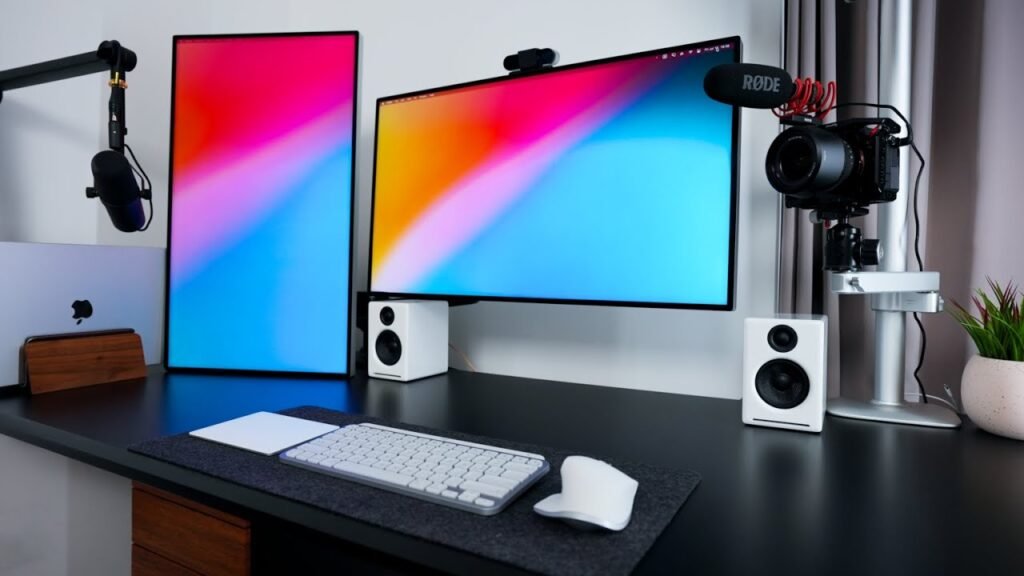
Content creators have unique needs. There may be a microphone, a camera, ring lights or softboxes, and editing software all running at the same time — and everything must fit on a small desk while not looking chaotic on camera.
The Creator’s Small Desk Challenge
The challenge is that creators need two seemingly incompatible things: a functional workspace AND a clean background for video. These two goals push in opposite directions. One is a matter of keeping things organized; the other, of keeping things visually appealing.
How to Solve It
The trick is to design for the camera angle, not just for function.
Step 1: Set your camera up and frame your shot before you set anything else up.
Step 2: Only place items inside the camera frame that are either functional or visually intentional.
Step 3: Everything else — hard drives, extra cables, snacks, stationery — goes behind the camera or to the side.
Creator Setup Gear Guide
| Item | Why It Matters | Space-Saving Option |
|---|---|---|
| Boom arm microphone | Keeps desk clear | Rode PSA1 folds away |
| Compact key light | Better video quality | Elgato Key Light Air |
| Webcam or camera mount | Camera off desk surface | Arm-mounted webcam |
| Stream deck (mini) | Quick shortcuts | Fits in one hand |
| Dual monitors (vertical stack) | More screen, less width | LG Ultrafine vertical mount |
Color and Aesthetic for Creator Desks
Don’t underestimate visual branding. Your desk, if often visible to your audience, becomes part of your brand. Pick 2–3 colors and be consistent. Use matching desk accessories, background items, and lighting. It makes a small desk look purposeful and professional on camera.
Setup #5 — The Student and Side-Hustle Hybrid
Best For: Students balancing school, a job, and a personal project all at once
This is the most demanding of the five setups. Students and side-hustlers often float between radically different types of work throughout the day — writing an essay, joining a client call, working on a Shopify store — all at the same desk.
The Multi-Mode Small Desk System
The answer is a desk that can transition modes quickly. Think of it as a transformer — same desk, different configurations.
Mode 1 — Study Mode: Textbooks, notebooks, and a laptop. Minimal tech.
Mode 2 — Hustle Mode: Two screens, headset on, everything within reach.
Mode 3 — Rest/Reset Mode: Everything put away. Just a plant or candle on the desk. This mode prevents burnout.
Making Mode-Switching Fast
The goal is to switch modes in under two minutes. Here’s how:
- Use a rolling cart beside the desk to store items that belong to specific modes
- Label three small bins: Study, Work, Clear
- At the start of each session, move the right bin to the desk
- At the end, return it to the cart
This system works because it removes decision fatigue. You don’t have to figure out what to set up. You just grab the right bin.
Budget-Friendly Gear for Students
| Item | Cost Range | Why It’s Worth It |
|---|---|---|
| Laptop stand | $15–$40 | Saves neck, frees up space |
| USB-C hub | $20–$50 | One cable for everything |
| Desk organizer with drawers | $15–$35 | Keeps modes separated |
| Foldable second monitor | $80–$150 | Huge productivity boost |
| Clip-on desk lamp | $20–$45 | Eye-safe lighting on any desk |
The Time-Blocking Connection
Many side-hustlers and students are more productive using time blocking — assigning specific hours to certain tasks. Pair your mode-switching system with a time-blocked calendar and the results multiply. Your physical environment and your schedule will be aligned toward the same task at the same time.
For more ideas on structuring your workspace around your workflow, check out Remote Work Desk Setup — a helpful resource dedicated to building productive home office spaces of all sizes.
Comparing All 5 Setups at a Glance
| Setup | Best For | Complexity | Budget Level | Top Feature |
|---|---|---|---|---|
| Minimalist Focus Station | Deep work, writing | Low | Low–Medium | Total distraction removal |
| Dual-Purpose Workstation | Remote + hobby users | Medium | Low–Medium | Zone-based transitions |
| Ergonomic Power Setup | Long-hour workers | Medium | Medium–High | Pain prevention + stamina |
| Content Creator Corner | YouTubers, streamers | High | Medium–High | Camera-ready design |
| Student/Side-Hustle Hybrid | Multi-taskers | Medium | Low–Medium | Fast mode-switching |
How to Determine Which Setup Is Right for You
With five options in front of you, picking one might feel overwhelming. Here’s an easy way to decide.
Ask yourself three questions:
- What is the single most important thing I do at this desk?
- How many hours a day do I spend here?
- What is my greatest present pain — clutter, comfort, focus, or context-switching?
Your answer to question 3 points directly to your setup:
- Distraction → Setup #1 (Minimalist)
- Context-switching → Setup #2 (Dual-Purpose) or Setup #5 (Student Hybrid)
- Physical discomfort → Setup #3 (Ergonomic)
- Looking professional on camera → Setup #4 (Creator)
Small Desk Mistakes That Kill Your Productivity
Even with a brilliant setup, some habits are silently undermining your results. Here are the most common ones:
Mistake #1 — Treating the desk like a storage shelf. Things pile up. Papers stack. Boxes get dropped off “just for a moment.” Before long, your workspace disappears. A 5-minute desk reset once a week makes sure this never happens.
Mistake #2 — Poor lighting. Dim light strains the eyes and makes you feel tired more quickly. A simple desk lamp with adjustable color temperature — warm for reading, cool for focused work — is one of the cheapest upgrades around.
Mistake #3 — No cable management. A single tangle of cables can make a small desk feel disorderly. Cable clips, velcro ties, and cable boxes costing under $20 combined change the entire visual feel of any setup.
Mistake #4 — Overlooking chair height. You can have the perfect desk setup and still hurt your back if your chair is wrong. Make sure your chair height is correctly adjusted before investing in desk accessories.
Mistake #5 — Setting up once and never revisiting. Your work changes. Your needs change. A solid home office productivity setup should be re-evaluated every few months and adjusted as needed.
Quick-Start Checklist for Any Small Desk Setup
Use this checklist to audit your current desk today:
- [ ] Is my monitor at eye level?
- [ ] Are cables hidden or organized?
- [ ] Is only daily-use gear on the surface?
- [ ] Do I have enough light?
- [ ] Is my chair at the correct height?
- [ ] Does my desk have a clear work zone?
- [ ] Can I find what I need in less than 10 seconds?
- [ ] Is there space to write by hand if needed?
If you checked fewer than 5 boxes, your setup has room to grow. Pick one or two of the lowest-cost, highest-impact items, and get started.
FAQs: Home Office Productivity Setups for Small Desks
Q1: What size desk is best for a home office? A desk around 40 to 55 inches wide is a good fit for most people. But it’s not size that matters so much as how you use the space. A clean, well-organized 40-inch desk will outperform a cluttered 72-inch desk.
Q2: Is it possible to set up dual monitors on a small desk? Yes. The main difference is that you use a dual monitor arm rather than two independent stands. Monitor arms attach to the back edge of your desk and support both screens above the surface, reclaiming nearly all of your workspace.
Q3: How can I keep my small desk from feeling cluttered? Start with one rule: only daily-use items stay on top. Everything else gets a home in a drawer, a shelf, or a storage box. Then do a 5-minute reset at the end of every workday to return things to their homes.
Q4: Are standing desks worth it for small spaces? A sit-stand converter (a riser that sits atop an existing desk) is a good compromise. It provides the health benefits of standing without requiring you to buy a new desk. Most models cost less than $100 and don’t take up much room when lowered.
Q5: What kind of lighting works best for a home office on a small desk? Natural light is best. If possible, place your desk facing or next to a window. For artificial lighting, use a lamp with a color temperature of 4000K–5000K (neutral to cool white) for focused work. Stay away from overhead-only lighting, as it casts harsh shadows on your screen.
Q6: How do I make my home office setup look professional during video calls? Position your camera at eye level — not looking up at you from below. Keep a light source in front of your face, not behind you. Keep the area visible behind you tidy. A simple bookcase or a plain, clean wall works perfectly.
Q7: Do I have to spend a lot of money to create an effective small desk setup? Not at all. Many of the most effective setups can be built or upgraded for less than $100. A $15 laptop stand, a $10 cable organizer, and a $20 desk lamp can turn an average desk into a genuinely productive workspace.
Wrapping It All Up
Your desk doesn’t have to be large to make you productive. It needs to be intentional.
Each of the five home office productivity setups in this guide is designed to take a small desk and transform it into a focused, functional, and comfortable workspace. The stripped-down approach clears all the excess so your mind can concentrate. The ergonomic setup safeguards your body for the long haul. The creator corner lets you look and sound like a professional. The dual-purpose and student hybrid setups have you balancing multiple roles without losing your mind.
The best setup isn’t the most expensive or the one you see most often on social media. It’s the one that works with your real life — your work style, your schedule, and your space.
Start small. Choose one that aligns with your biggest struggle right now. Make one or two changes this week. Then build from there.
A better workday isn’t as far away as you think — and it begins right at your desk.